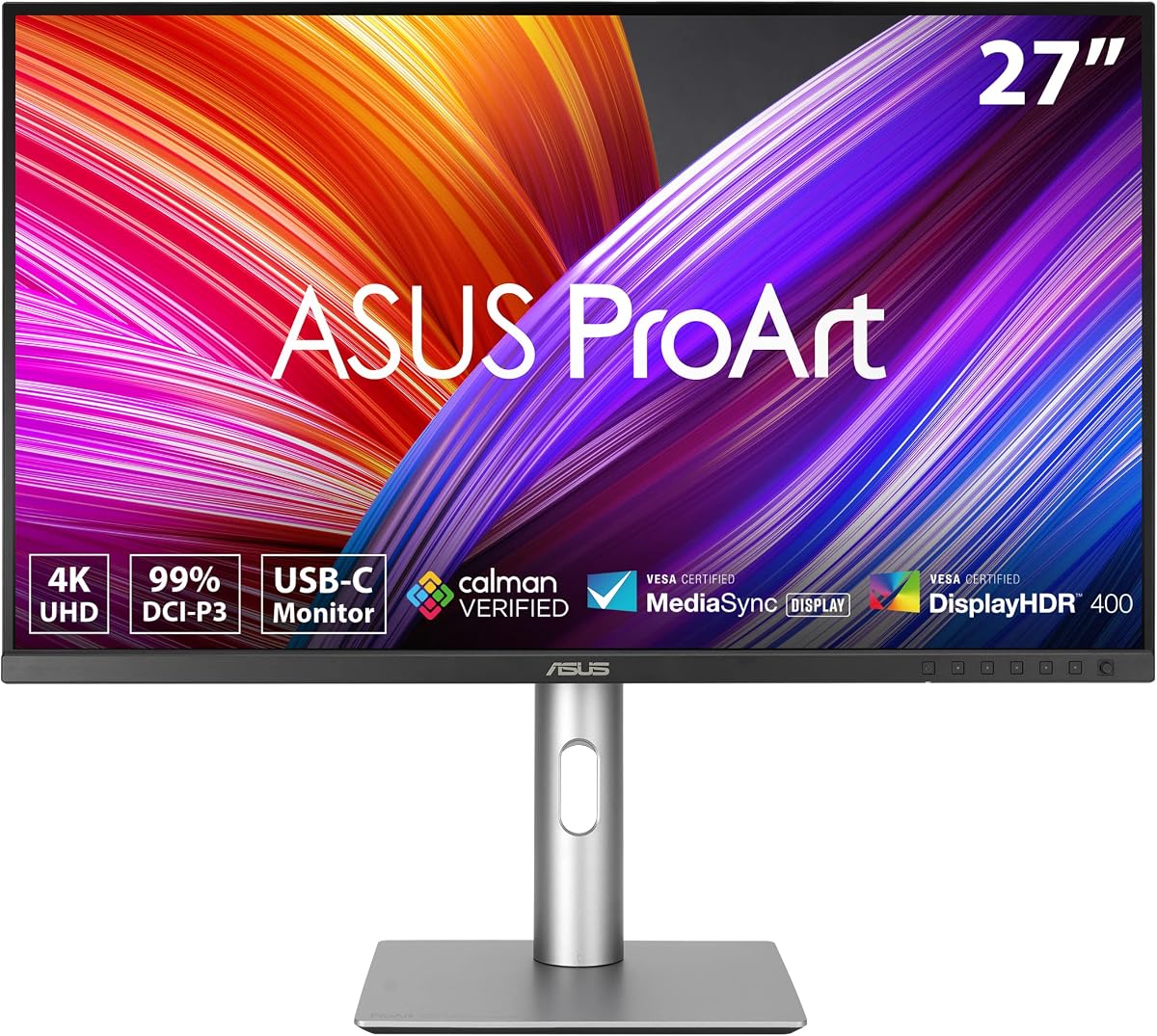
ASUS ProArt PA279CRV
4.2Editor score
Factory-calibrated 4K IPS display
99% Adobe RGB coverage
USB-C with 96W charging
A monitor for Adobe Illustrator must balance pixel resolution, color accuracy, wide viewing angles, and comfortable controls. Vector work benefits from sharp curves, clean edges, stable color, and enough workspace for detailed compositions. The right display should also fit your desk, connect smoothly to your computer, and remain dependable throughout long creative sessions.
We compared all ten monitors using the specifications and feature details provided for this guide. The evaluation covers resolution, panel type, Adobe RGB or DCI-P3 coverage, factory calibration, brightness, refresh rate, touch support, connectivity, power delivery, and ergonomic adjustment. Gaming-focused and general-purpose displays are included to separate different creative priorities.
Each recommendation identifies the feature that gives the monitor its place in the list and explains where it may be less suitable for your workflow. The top picks include a color-focused 4K option, a versatile dual-mode creative display, and a premium 6K touchscreen. Product availability and pricing can change, so compare current listings before buying.
4.2Editor score

5.0Editor score
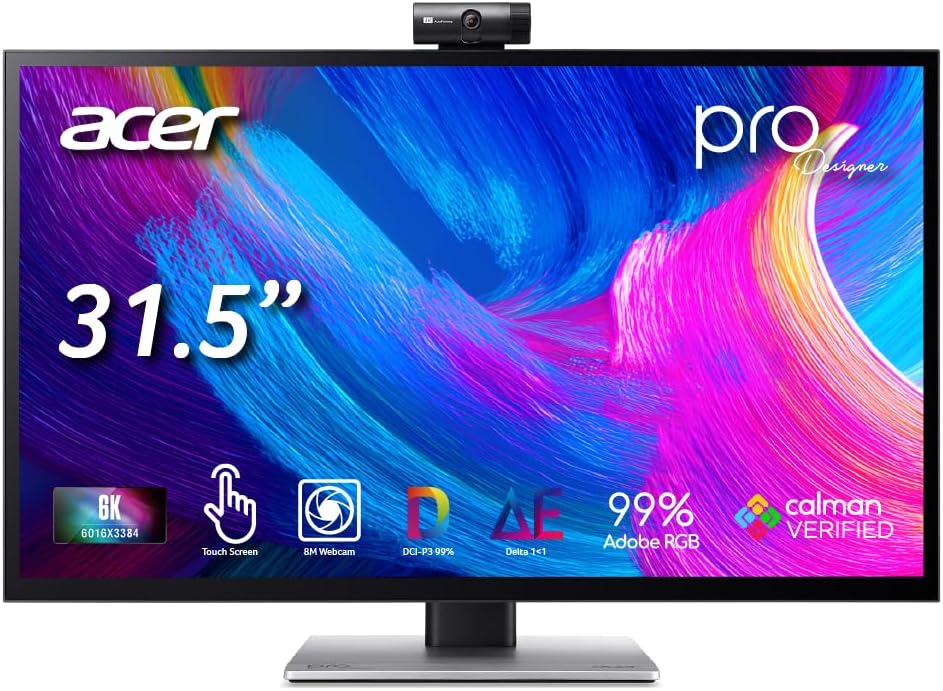
4.6Editor score
As an Amazon Associate we earn from qualifying purchases.
The comparison below highlights the major differences in resolution, color coverage, calibration, connectivity, and specialized features. These specifications make it easier to match each display to an Illustrator workflow, from vector illustration and logo design to print preparation and touch-based retouching.



The ASUS ProArt PA279CRV is a strong all-around choice for Adobe Illustrator users who want accurate color and generous canvas space without moving to a specialist 5K or 6K display. It combines a 27-inch 4K IPS panel with 99% Adobe RGB and 99% DCI-P3 coverage. Its 4.2 rating reflects a capable professional feature set, although the exact panel and refresh-rate configuration should be confirmed when comparing listings.
We may earn a commission when you buy through this link, at no additional cost to you.
The most important strength is its balance of resolution and calibrated color. A native 3840-by-2160 canvas makes vector paths, type, handles, and fine interface elements easier to inspect. Factory calibration to Delta E below 2 and Calman Verified status support consistent output, while the wide-view IPS panel helps maintain usable viewing angles. That makes the screen suitable for print-oriented work, digital artwork, interface mockups, and detailed vector composition.
Connectivity is particularly convenient for a laptop-based creative setup. DisplayPort over USB-C carries the display signal, provides up to 96 watts of charging, and supports a USB hub. Separate DisplayPort and HDMI connections allow more flexibility, while DisplayPort daisy chaining can extend the workspace to another monitor. The stand adjusts for tilt, swivel, pivot, and height, an important advantage for long illustration sessions.
The main limitation is that this is primarily a professional productivity monitor rather than a touch or high-refresh creative workstation. Its listed specifications do not include touch input, and a 4K IPS panel will not provide the extra working resolution of a 5K or 6K model. It is still a persuasive recommendation for most Illustrator workflows, particularly for buyers who value color, connectivity, and ergonomics together.
Coverage of 99% Adobe RGB is especially relevant when Illustrator artwork may pass through print production. Factory pre-calibration and a stated Delta E below 2 help the display represent colors consistently, while the IPS panel provides broad viewing angles for showing work to clients.
USB-C video, 96-watt charging, and the integrated USB hub reduce desk clutter for MacBook or Windows laptop users. DisplayPort daisy chaining also provides a practical route to a second screen for asset browsing, reference material, or collaboration.
We may earn a commission when you buy through this link, at no additional cost to you.
The BenQ PD2732U is built for creative professionals who want a deeply supported color environment and a modern Thunderbolt workstation. Its 27-inch 4K display covers 99% Adobe RGB and Display P3, reaches 100% sRGB and Rec.709 coverage, and is factory calibrated to Delta E two or better. It also carries Calman Verified and Pantone Validated status, making it compelling for color-sensitive vector and brand-design work.
We may earn a commission when you buy through this link, at no additional cost to you.
One of its strongest distinctions is the emphasis on panel-wide consistency rather than color capability alone. BenQ's full-panel calibration addresses uneven color and brightness that could otherwise influence visual judgment. AQCOLOR Pilot, Nano Matte Black panel technology, and the Mac-oriented M-book mode support more controlled creative workflows. For illustrators comparing subtle tones, these features may carry more value than a very high refresh rate.
The Thunderbolt 4 connection supports up to 90 watts of charging and 40Gbps transfers. It can also daisy chain dual 4K displays, while a built-in KVM switch makes it easier to move between connected systems. Mac-focused conveniences include iKeyboard Control and iDevice Color Sync previews, and the included Wireless Hotkey puck places frequently used settings within reach.
Its main drawback is the substantially higher investment compared with conventional 4K ProArt and ProDesigner alternatives. The value is strongest for creators who can use Thunderbolt 4, KVM switching, and Mac integration every day. If those features are unnecessary, a less costly calibrated 4K display may serve an Illustrator workflow more efficiently. Even so, this is a feature-rich and well-aligned option for a serious creative desk.
The combination of Calman Verified, Pantone Validated, Delta E two or better, and full-panel calibration gives this monitor a clear color-management story. That is valuable when artwork must remain visually consistent across proofing, client review, and final output.
A single Thunderbolt 4 connection can handle display input, laptop charging, high-speed data, and daisy chaining. The built-in KVM function and hardware control puck further support switching and routine adjustments in multi-computer studios.
We may earn a commission when you buy through this link, at no additional cost to you.
The Acer ProDesigner PE270K L1 stands out as the most adaptable monitor in this guide for illustrators who alternate between precision work and motion-sensitive previews. It carries a 4K IPS panel, 99% Adobe RGB coverage, 96% DCI-P3 coverage, and factory calibration to Delta E below 1. Its 5.0 rating, combined with the supplied Calman Verified details, makes it the most compelling general-purpose creative recommendation here.
We may earn a commission when you buy through this link, at no additional cost to you.
Its distinctive DFR technology lets the display change between 4K at 72Hz for color-critical grading and retouching and 1080p at 144Hz for fast-motion review. That flexibility is unusual among professional 4K monitors. It can be valuable when working on animated previews, motion references, or design material involving movement, while native 4K remains available when path precision and fine detail are more important.
Color switching through Acer Creator Hub is another major advantage. The software can change among sRGB, Adobe RGB, and DCI-P3 without requiring a restart, and it also includes layout tools and calibration functions. The built-in KVM lets two computers share one keyboard and mouse, while the Smart Dial provides quick access to brightness, volume, and color-space presets. USB-C supports 4K video and 90-watt charging, and DisplayPort daisy chaining supports a second screen.
The compromise is that the 144Hz mode drops the panel to 1080p, so it is not a native 4K high-refresh screen. Illustrator users who only need a sharp vector canvas may never need that faster mode, while the dual-mode design adds flexibility. The ErgoStand's height, tilt, swivel, and pivot adjustments also support sustained work. Overall, it is the strongest pick for users who want calibrated color, multiple color spaces, and adaptable creative performance in one display.
The 4K Precision mode favors fine detail and color-critical work, while 1080p Speed mode at 144Hz is useful for reviewing motion. The ability to change modes from the OSD makes this display useful beyond conventional vector illustration.
Acer Creator Hub consolidates color-space switching, calibration, and split-screen tools. A dedicated Smart Dial also shortens the path to common adjustments, which can reduce interruptions during focused creative sessions.
We may earn a commission when you buy through this link, at no additional cost to you.
The Acer ProDesigner PE320QXT is the premium choice in this roundup, combining a 31.5-inch 6K Quantum-Dot IPS panel with direct touch interaction. Its 20.4 million pixels make it ideal for detailed illustration, retouching, and artwork in which fine paths, small type, and subtle tonal transitions must remain visible. The stated Delta E below 1 accuracy and 4.6 rating support its position as a professional-grade creative display.
We may earn a commission when you buy through this link, at no additional cost to you.
The 6K resolution is only part of the appeal. Ten-point touch allows sketching, annotation, and direct manipulation, while the screen supports MPP 2.0 active styluses with up to 4,096 pressure levels and tilt recognition. The supplied description notes that a stylus is not included, so buyers should plan accordingly. For artists who prefer working directly on the display, this feature can reduce dependence on a separate tablet.
Color capability is comprehensive for a general creative monitor. It offers 99% Adobe RGB and 99% DCI-P3 coverage, factory calibration, and Calman Verified status. DisplayHDR 600 certification adds a meaningful brightness tier for HDR content, while Acer Creator Hub manages color spaces, calibration, and screen layout. USB-C carries the full 6K signal while providing up to 90 watts of laptop charging, reducing the number of cables needed at the desk.
Its 31.5-inch footprint, 6K specification, and premium status place it beyond the reach of buyers focused on value. The built-in adjustable 8MP webcam and four-microphone array are also useful for reviews and client calls, but they do not replace a good external microphone for demanding voice work. For a professional studio, this is an unusually complete Illustrator display where resolution, touch, color, and communication features all align.
The 31.5-inch 6K panel provides enough pixel density to expose fine vector paths, brush textures, and small interface details without requiring constant zooming. The larger physical canvas also makes multi-panel composition more comfortable than a smaller high-resolution display.
Ten-point touch and MPP 2.0 stylus support broaden the range of working methods. Illustrators can sketch, annotate, and retouch directly, although a compatible active stylus must be purchased separately if it is not already owned.
We may earn a commission when you buy through this link, at no additional cost to you.
The ASUS ROG XG27AQDMGR is a high-speed OLED monitor that can handle Illustrator work when strong contrast, quick response, and a dark interface are priorities. Its 26.5-inch QHD TrueBlack Glossy WOLED panel runs at 240Hz with a 0.03ms response time. The 4.6 rating is strong, though the absence of a stated Adobe RGB figure makes it less conventional as a print-oriented professional monitor.
We may earn a commission when you buy through this link, at no additional cost to you.
The OLED panel delivers true 10-bit color, 99% DCI-P3 coverage, and VESA DisplayHDR 400 True Black compliance. Those characteristics can make saturated artwork and dark Illustrator interfaces appear vivid, while the fast response time keeps motion previews responsive. Its gaming-oriented design also includes ROG Gaming A.I. features and ASUS DisplayWidget Center, which gives convenient access to settings and OLED Care Pro functions.
The Neo Proximity Sensor can detect when the user steps away and switch the screen to black, reducing the risk of burn-in. That is a meaningful feature for an OLED display used with static menus, toolbars, or long-open artwork. ASUS also provides three years of warranty with burn-in coverage, making the ownership commitment clearer than it would be with an unprotected OLED panel.
For print workflows, the lack of published Adobe RGB coverage in the supplied specifications is the key limitation. The glossy finish may also reflect ambient light, which can make color judgment less comfortable in a bright room. It is best for digital illustration, concept animation, web graphics, and motion review where DCI-P3 and high refresh rate matter more than formal print-gamut coverage.
A 240Hz refresh rate and 0.03ms response time make the display highly responsive when reviewing animated sequences, timing interactive graphics, or working with rapidly changing visual references. QHD resolution is lower than the 4K and 6K alternatives here, however.
The Neo Proximity Sensor switches the panel to black when the user is away, helping reduce burn-in risk during idle periods. The included burn-in coverage adds reassurance for a display likely to remain on with static creative applications.
We may earn a commission when you buy through this link, at no additional cost to you.
The ASUS PA279CRV-P is a polished 4K creative monitor designed with Apple Mac workflows and TAA compliance in mind. It offers 3840-by-2160 resolution, HDR 400, a wide-view 178-degree IPS panel, 99% DCI-P3 coverage, and 99% Adobe RGB coverage. Its 4.5 rating and factory calibration to Delta E below 2 make it a confident choice for color-conscious Illustrator work.
We may earn a commission when you buy through this link, at no additional cost to you.
The most distinguishing feature is TAA compliance, which can make the display more suitable for procurement-sensitive or institutional environments. For the artist, the ProArt feature set remains centered on dependable color and a tidy desk. DisplayPort over USB-C supports up to 96 watts of charging, while the built-in USB hub allows compatible peripherals to connect through the monitor.
The stand supports height, tilt, swivel, and pivot adjustment, and the slim profile, compact base, and 100-by-100-millimeter VESA compatibility give users more placement options. A color pre-calibration report and extended five-year warranty with online registration reinforce the professional positioning. The included DisplayPort cable, HDMI cable, power cord, stand, guide, and warranty card support straightforward setup.
In practical terms, this model overlaps heavily with the standard ProArt PA279CRV. The deciding factor may be TAA compliance, current availability, or the exact configuration of the particular listing. It does not add touch, 5K resolution, or a high-refresh productivity mode, so buyers should not choose it solely for those features. It remains a refined 4K option for Mac-based vector professionals.
Factory pre-calibration, Calman Verified status, Delta E below 2, and wide Adobe RGB coverage provide a dependable starting point for artwork that may enter a print workflow. The 4K panel offers enough room for detailed canvas navigation and precise path editing.
USB-C charging and the integrated hub can simplify a laptop-centered setup. The adjustable stand, compact base, and VESA compatibility also make the monitor easier to adapt to different workspaces and ergonomic preferences.
We may earn a commission when you buy through this link, at no additional cost to you.
The ASUS ProArt PA27JCV offers 5K resolution in a 27-inch format, making it appealing to illustrators who need more detail than a conventional 4K canvas. It delivers 5120-by-2880 resolution, 99% DCI-P3 coverage, 100% sRGB coverage, and 95% Adobe RGB. Factory calibration to Delta E below 2 and Calman Verified status support professional use, although its 3.6 rating is the lowest in this group.
We may earn a commission when you buy through this link, at no additional cost to you.
Its principal advantage is pixel density. At 5K, vector anchors, fine type, and interface details remain exceptionally compact, reducing the need to zoom in and out while working. The 178-degree wide-view IPS panel also helps preserve color consistency when a client stands nearby. For designers creating intricate icons, logos, patterns, and small-format layouts, that extra resolution can be more meaningful than a high refresh rate.
Convenience features support a professional desk. USB-C provides DisplayPort connectivity, fast data transfer, and up to 96 watts of charging. An automatic KVM feature can switch between two connected laptops or PCs using one keyboard and mouse. Ambient-light and backlight sensors provide intelligent brightness adjustment, helping maintain a consistent viewing experience as room lighting changes.
The 95% Adobe RGB specification is not as comprehensive as the 99% coverage offered by several ASUS ProArt and Acer ProDesigner models, so it may be less ideal for highly print-critical color work. Its 3.6 rating also deserves attention when buying under time pressure. Still, the combination of 5K detail, calibrated color, ambient sensors, and USB-C makes this a compelling option for a vector-focused Mac or Windows workstation.
The 27-inch 5K panel provides a high-density workspace without the physical footprint of a 31.5-inch model. It is particularly useful for detailed icon design, technical drawings, typography, and complex vector illustrations.
Ambient-light and backlight sensors can help keep brightness and color temperature appropriate as the room changes. The automatic KVM feature also reduces the need to manually reconnect peripherals when moving between two computers.
We may earn a commission when you buy through this link, at no additional cost to you.
The Samsung Odyssey OLED G6 is a fast, vivid QD-OLED display with a 4.7 rating, the second-highest in this guide. It combines 1440p resolution, a 240Hz refresh rate, and a 0.03ms response time. While it was designed primarily around gaming, the panel's high brightness, broad color range, and Pantone Validated screen can give digital illustrators a crisp and colorful workspace.
We may earn a commission when you buy through this link, at no additional cost to you.
Pantone Validated status means the screen can accurately reproduce more than 2,100 lifelike colors and over 110 skin-tone shades. HDR10 support adds brighter highlights and more nuanced shadows, while AMD FreeSync Premium helps reduce choppiness, lag, and tearing on supported systems. The combination creates a responsive display for motion references, animated content, and interface previews.
Samsung's OLED Safeguard technology uses thermal modulation to help address burn-in, and Glare Free technology is intended to reduce distracting reflections. The height-adjustable stand pivots, tilts, and swivels, allowing the display to be positioned comfortably for long working sessions. These details make it a practical creative monitor even though its feature set is gaming-led.
The biggest limitation for Illustrator is the 1440p resolution, which offers fewer pixels than the 4K, 5K, and 6K alternatives in this guide. No Adobe RGB coverage is stated in the supplied data, so it is not the safest choice for formal print workflows. It is better suited to web graphics, branding concepts, digital illustration, and motion-focused design where vivid color and rapid response are the priority.
The 240Hz refresh rate and 0.03ms response time keep motion smooth and immediate. This is useful when reviewing animated assets, timing interactive experiences, or switching between motion references and static vector work.
Pantone Validated color reproduction provides a recognizable benchmark, while Glare Free technology can improve comfort in rooms with uncontrolled ambient light. Buyers focused on print should still seek explicit Adobe RGB coverage elsewhere.
We may earn a commission when you buy through this link, at no additional cost to you.
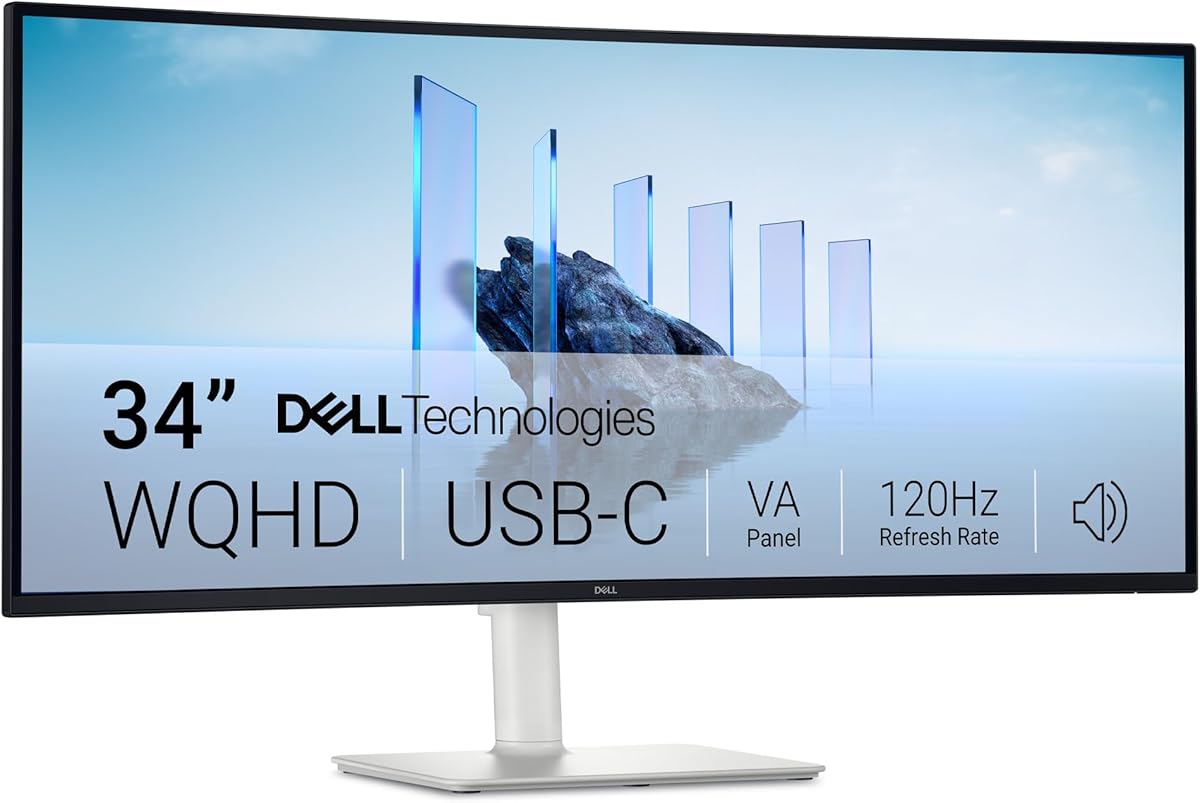
The Dell S3425DW is a wide, curved 34-inch monitor that offers a spacious canvas without the cost of a high-resolution professional reference display. Its WQHD VA panel, 120Hz refresh rate, 0.03ms response time, and 4.4 rating make it a comfortable general-purpose choice for digital illustration, web graphics, and design work that values width and smooth interaction.
We may earn a commission when you buy through this link, at no additional cost to you.
The 3000:1 contrast ratio can give artwork deeper blacks and stronger image depth than many conventional IPS office monitors. Coverage of 99% sRGB and 95% DCI-P3 supports colorful digital work, while AMD FreeSync Premium and the 120Hz refresh rate provide a fluid experience. The curve can make a wide desktop feel more immersive, although it is not the same as having a calibrated wide-gamut professional panel.
USB-C connectivity with up to 65 watts of power delivery helps create a cleaner desk for laptop users. The monitor also includes improved built-in sound with greater output power and a deeper frequency response than the prior generation, which can be convenient for playback or collaboration. ComfortView Plus reduces harmful blue-light emissions to 35 percent or less while preserving color accuracy.
The principal limitation is the absence of any stated Adobe RGB coverage, factory calibration, or Delta E target in the supplied data. That makes the S3425DW less appropriate for critical print-color decisions. The lower WQHD resolution also means less detail than 4K alternatives. It is best viewed as a productive, visually immersive monitor for broad creative use rather than a dedicated color-proofing instrument.
A 34-inch curved display provides more horizontal space for side-by-side tools, artboards, timelines, and reference panels. The broad format can be especially useful for branding work, social graphics, and multi-application workflows.
The 120Hz refresh rate, low response time, adjustable positioning, and ComfortView Plus feature support smooth and comfortable daily use. USB-C charging and integrated audio help reduce the number of separate desk accessories.
We may earn a commission when you buy through this link, at no additional cost to you.
The Dell S2425HSM is the most accessible option in the guide and a practical starting point for students, beginners, and occasional Illustrator users. It pairs a 23.8-inch FHD display with a 144Hz refresh rate, 1ms Moving Picture Response Time, and a 4.7 rating. The high refresh rate and flexible stand make it feel more modern than a typical entry-level office monitor.
We may earn a commission when you buy through this link, at no additional cost to you.
The 1920-by-1080 resolution is the main constraint for professional vector work. Illustrator's interface and artboards can feel cramped compared with a 4K panel, particularly when multiple tools and reference windows are open. The 1500:1 contrast ratio improves clarity, but the supplied data gives no Adobe RGB, DCI-P3, or calibration target. Color-critical print work should therefore use another display in this list.
For ordinary illustration, web graphics, social media artwork, and learning Illustrator, the S2425HSM still offers a clear package. AMD FreeSync supports smoother motion, and the integrated dual 3W speakers make it possible to review sound alongside a design without immediately adding separate speakers. A four-star TÜV certification and reduced blue-light emissions support comfortable viewing.
Height, tilt, pivot, and swivel adjustments allow the display to fit different desks and working postures. Dell Display and Peripheral Manager provides centralized control for compatible Dell devices. The Ash White finish also distinguishes it visually from many black creative monitors. It is not the choice for professional color grading or print production, but it remains a capable and well-rated entry point for building Illustrator skills.
The familiar 23.8-inch FHD format is simple to arrange and offers enough space for learning Illustrator tools, creating small assets, and completing everyday design tasks. It is also likely to be easier to fit on a compact or shared desk.
A 144Hz refresh rate and 1ms MPRT provide fluid interaction, while height, tilt, pivot, and swivel adjustment make the monitor easier to align. Integrated stereo speakers round out a simple, functional creative setup.
We may earn a commission when you buy through this link, at no additional cost to you.
The best monitor for Adobe Illustrator depends on the kind of work you create, the precision you require, and the hardware already on your desk. Resolution, color gamut, calibration, and ergonomics deserve more attention than refresh rate for most vector workflows, although specialized projects may change the priority.
Resolution determines how much working space appears within Illustrator's interface and how much detail the display can reveal. A 27-inch 4K panel provides a meaningful step up from FHD, making toolbars, small type, anchors, and curves easier to inspect. A 5K or 6K display goes further, reducing the need to zoom when precision matters, but requires a computer and connection capable of driving the full resolution. Consider the practical benefit rather than pixel count alone: a larger 4K canvas may be more useful to an illustrator than a smaller but denser 5K screen if desk space and multi-application work are priorities.
Adobe RGB is especially relevant when Illustrator artwork will be prepared for print or incorporated into a broader print-managed workflow. DCI-P3 is especially useful for motion, web, and HDR-oriented digital work. A high gamut percentage is not the same as guaranteed accuracy, so pair coverage with factory calibration, a stated Delta E target, and verification by a recognized calibration system. The best professional choices in this guide provide explicit coverage and calibration information, making them easier to compare responsibly.
Factory calibration attempts to make the display's output more consistent from the moment it arrives. Delta E describes the measured difference between a displayed color and its target; a lower number generally indicates greater accuracy. Displays specified at Delta E below 1 or below 2 offer more precision than screens with no documented target, but the operating color mode still matters. Acer notes that its Delta E below 1 measurement was performed in Adobe RGB mode, while the PE320QXT specification was measured in standard sRGB. Treat these as mode-specific claims rather than universal guarantees.
IPS panels are common among the professional 4K and 5K options in this guide because they offer broad viewing angles and consistent color when viewed from the side. QD-OLED and WOLED panels can provide deeper contrast and faster response, while VA panels can also create strong contrast but may show more viewing-angle variation. For a professional desk, wide viewing angles are useful because clients often lean around the screen. Reflective finishes can also complicate color judgment in a bright room, so control lighting or favor an anti-reflective surface when accuracy is critical.
A modern Illustrator workstation often includes a laptop, drawing tablet, external storage, and a second reference display. USB-C with power delivery can carry video and data while charging the computer, reducing cable clutter. Thunderbolt 4 adds high-bandwidth data transfer and daisy chaining, while DisplayPort daisy chaining is a simpler option for extending multiple 4K displays. A built-in KVM allows one keyboard and mouse to control two computers. Check that the monitor's supported input modes include your computer's preferred resolution and refresh rate; a nominal USB-C port does not guarantee every mode.
Touch is not essential for standard Illustrator work, but it can be valuable for sketching, rapid annotations, and direct manipulation. The Acer PE320QXT supports ten-point touch and MPP 2.0 active styluses with 4,096 pressure levels and tilt recognition. Its supplied information states that the stylus is not included, so budget and source an appropriate pen separately. Existing Illustrator users with a calibrated tablet may prefer a conventional non-touch display and dedicate the tablet to drawing while keeping the monitor for precise preview and navigation.
Vector illustration often requires precise mouse or pen input, making a stable, well-positioned screen important. Height adjustment helps align the top of the display with eye level, while tilt, swivel, and pivot support different desk arrangements and viewing angles. A 31.5-inch or 34-inch model needs more space than a 24-inch display, and a curved screen requires sufficient viewing distance. Check the included stand and VESA compatibility if you intend to use an arm or wall mount. Ergonomic features do not replace a supportive chair, proper desk height, and regular breaks.
Refresh rate matters less for static vector illustration than for animation, video, or gaming. Still, a 120Hz or 144Hz panel can make interface navigation feel more immediate. The Acer PE270K L1 uniquely offers a 4K precision mode and a 1080p speed mode, allowing illustrators to prioritize either detail or fluid motion. OLED gaming displays offer very fast response but usually provide lower native resolution in this group. Choose based on actual work rather than assuming a high refresh rate automatically improves illustration quality.
Begin by setting the display to the color space appropriate for the task. Use Adobe RGB for print-oriented Illustrator projects, sRGB for standard web assets, and DCI-P3 for video or HDR workflows when the application and export settings support it. Avoid changing the operating system profile and the Illustrator document profile independently; both should describe the intended destination. Allow the monitor to warm up before making fine color decisions, and keep room lighting consistent with the conditions in which the final work will be viewed.
For the sharpest appearance, use the display's native resolution and an appropriate scaling setting. Illustrator benefits from a scaled interface that remains readable while preserving enough canvas area. Connect a compatible computer through the highest-bandwidth port that supports the desired resolution, and use DisplayPort or Thunderbolt daisy chaining when extending to multiple displays. Keep the color profile current through the operating system or the manufacturer's calibration utility, and use a hardware calibrator if the work demands consistently repeatable results.
Care for the panel by keeping software at the native resolution unless a specialized mode is required, allowing the display to cool, and avoiding prolonged operation with static content on OLED models. Use the provided brightness and KVM controls rather than repeatedly changing settings from multiple devices. Clean the screen with a soft microfiber cloth and a suitable nonabrasive cleaner, and never spray liquid directly onto the panel. Finally, take regular breaks, adjust the stand for a neutral viewing position, and document your calibration and export settings alongside each serious project.
No, but a higher-resolution display can make detailed vector work easier to inspect. FHD is workable for learning and smaller assets, while 4K offers more canvas space and finer interface elements. A 5K or 6K panel can provide additional detail, although it costs more and may require more desk space and stronger graphics hardware.
A 99% Adobe RGB monitor is a strong starting point for print-oriented illustration because its gamut closely follows that color space. Coverage alone does not guarantee accuracy, so look for factory calibration, a stated Delta E target, and independent verification. The lighting, application profile, printer, and output process also affect the final result.
OLED can provide excellent contrast, rich color, and fast response for digital art, motion work, and interface interaction. For sustained print-focused workflows, a calibrated IPS or other professional display with explicit Adobe RGB coverage may be more straightforward. OLED users should also consider burn-in protection, static content, and room reflections.
It can. A compatible USB-C connection can carry the display signal, provide laptop charging, and expose a USB hub, reducing the number of separate cables. For dual 4K output or high-speed data transfer, verify Thunderbolt 4 support and confirm that the computer, monitor, and cable all support the desired mode.
A touchscreen can help with sketching, annotations, navigation, and direct retouching, but it is not essential for conventional Illustrator production. Touch displays intended for active use may support pressure-sensitive styluses, though the pen can cost extra. Artists who already own a reliable tablet may gain more from a higher-resolution non-touch monitor.
Most static vector illustration does not require an extremely high refresh rate. A 120Hz or 144Hz screen can make navigation feel smoother, while 4K resolution and calibrated color usually contribute more to the quality of the working environment. High-refresh and dual-mode screens make more sense when you regularly review animation, video, or interactive motion.
Factory calibration provides a useful baseline, but checking the display in your own room can improve consistency. Use a reputable colorimeter if the work requires dependable color decisions, and save calibration profiles for the specific display, brightness, and color space you use. Recalibrate when the environment changes significantly or the display is moved.
A curved model can make a wide desktop feel more natural and provide extra horizontal working space. The curve does not inherently improve color accuracy or Illustrator performance. Make sure the screen is large enough to view comfortably, and consider glare, desk depth, and whether a flat calibrated display better suits your color workflow.
The ASUS ProArt PA279CRV is the most balanced overall recommendation because it combines a sharp 4K IPS panel, 99% Adobe RGB coverage, factory calibration, USB-C charging, and a highly adjustable stand. The Acer ProDesigner PE270K L1 stands out for exceptional stated accuracy, fast dual modes, and useful color-space software, while the Acer ProDesigner PE320QXT is the premium choice for buyers who want a 6K canvas with touch and stylus support.
Prioritize the features your daily work actually requires. Print preparation calls for explicit Adobe RGB coverage and calibration, fine vector detail calls for 4K or higher resolution, and animation or video work may justify a faster refresh rate. USB-C, Thunderbolt 4, KVM switching, and daisy chaining can materially improve a laptop-based desk, while ergonomics deserve attention on every setup because accurate pointing and comfortable posture affect long sessions.
Check the current product listing, configuration, and price before purchasing, since monitor models and bundles can change. Confirm the panel mode, included accessories, cable support, and color-space details against the project you have in mind. The right display should make Illustrator feel more precise and fluid, while giving you confidence that the colors and details you see will translate well into the final asset.