
Sceptre 32-Inch 4K UHD
3.9Editor score
Expansive 32-inch canvas
Four video inputs
Built-in stereo speakers
A cheap 4K monitor can provide more room, sharper text, and better detail than a Full HD display without requiring a premium workstation. The strongest options combine accurate 4K resolution with useful IPS color, sensible connectivity, comfortable viewing features, and an appropriate refresh rate for office work, media, or gaming.
We compared the ten monitors by examining resolution, panel technology, refresh rate, response time, color coverage, HDR support, ports, speakers, mounting options, and ergonomic features. The guide covers traditional 16:9 4K screens for productivity and gaming as well as one lower-cost ultrawide that offers extra width but not true 4K resolution.
Each review identifies the feature that makes the monitor stand apart while also explaining where it falls short. Ratings, specifications, and availability can change over time, and retailer prices fluctuate frequently, so confirm the current listing and your computer's connection options before purchasing.
3.9Editor score

4.2Editor score

4.8Editor score
As an Amazon Associate we earn from qualifying purchases.
The table below places all ten displays side by side, highlighting their most important differences in resolution, panel type, refresh rate, and feature set. It also makes clear which option is a traditional 4K monitor and which one is an ultrawide alternative.


The Samsung ViewFinity S7 S70H combines a 27-inch 4K UHD panel with a 178-degree viewing angle, HDR10 support, and eye-comfort technology. Its 4.2 rating reflects a balanced package, but the deeper appeal is its combination of sharp resolution, flexible productivity features, and understated suitability for everyday computing. It is designed to handle office work, media, and general creative tasks without demanding a specialized gaming setup.
We may earn a commission when you buy through this link, at no additional cost to you.
Samsung's Display Manager is one of the monitor's most valuable additions. It provides access to split-screen layouts, brightness adjustment, KVM functionality, picture-in-picture and picture-by-picture modes, plus calibration controls. Those tools can reduce dependence on operating-system features when comparing documents, copying information, or arranging several applications. The physical screen also delivers 3840 x 2160 resolution, giving dense text a more defined appearance than a conventional Full HD panel.
The main limitation is that this is not positioned as a competitive high-refresh gaming display. The supplied specifications emphasize HDR10, broad viewing angles, and productivity rather than unusually fast response or gaming-oriented synchronization. It also does not list integrated speakers, so users who expect audio from the display may need separate speakers or headphones. These omissions are reasonable for a productivity-focused model, but they narrow its appeal for buyers whose priorities are entertainment and fast gaming.
This is the strongest general recommendation for people who want one affordable 4K screen for a mixed office, study, and media routine. The 27-inch size avoids the desk-space demands of a 32-inch model while still offering four times the pixels of Full HD. For competitive gaming, however, the Dell S2725QS or Acer Nitro VG270K L1 offer more gaming-oriented specifications.
The split-screen, KVM, and picture-in-picture functions make the Samsung unusually practical for users who regularly move between applications or devices. These utilities can simplify workflows without requiring additional monitors, while the 4K canvas retains enough space for detailed documents and side-by-side reference material.
Eye Saver Mode is designed to reduce blue light and prevent screen flickering, and the listed TÜV certification adds confidence for long work or study sessions. The 178-degree viewing angle also gives the screen some flexibility when it is not positioned directly in front of the viewer.
We may earn a commission when you buy through this link, at no additional cost to you.
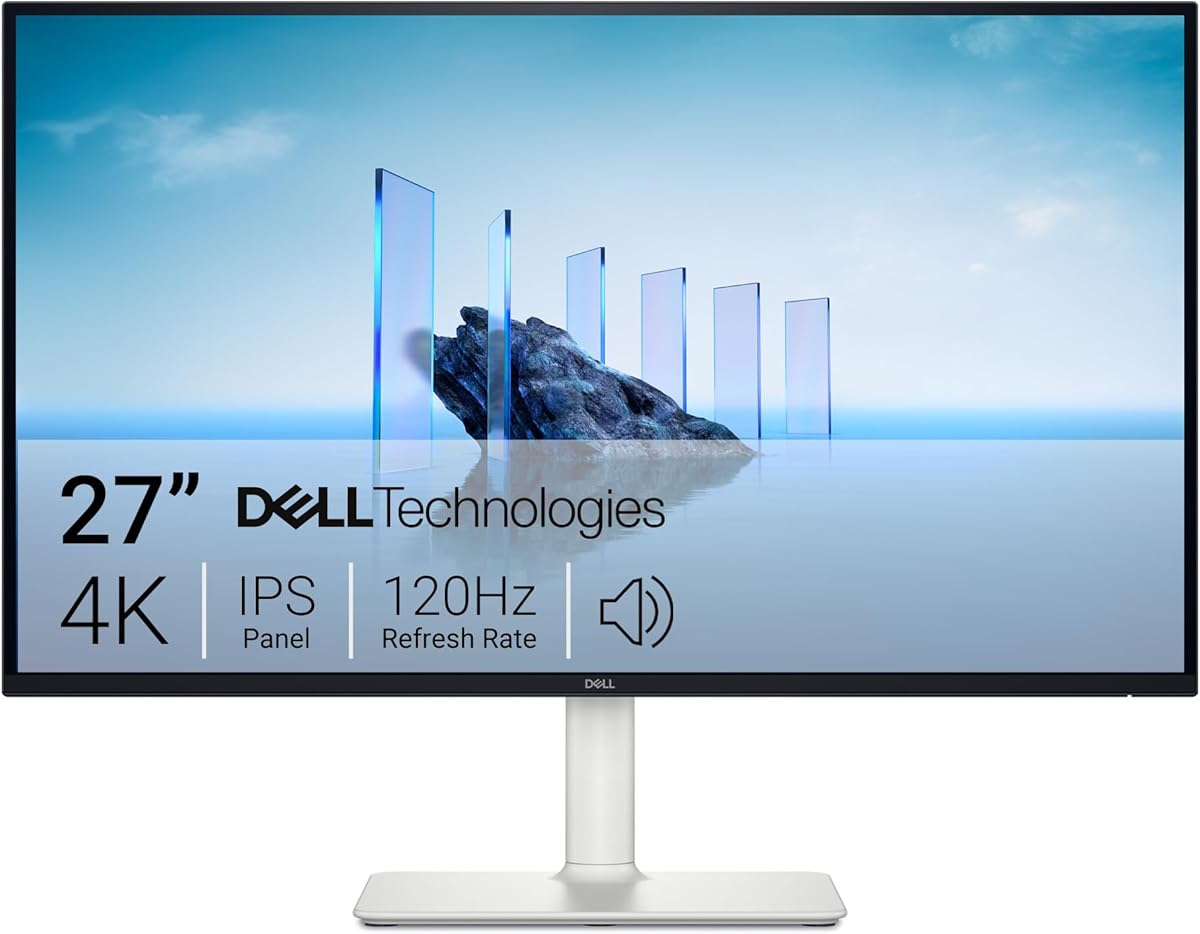
The Dell S2725QS is the first choice to examine when a cheap 4K monitor must also handle fast motion. It combines 4K UHD resolution with a 120Hz refresh rate, an ultra-low stated 0.03ms response time, and AMD FreeSync Premium. Its 4.4 rating makes it one of the stronger-rated products in the group, and the specifications place it clearly above standard 60Hz office monitors.
We may earn a commission when you buy through this link, at no additional cost to you.
The IPS panel supports wide viewing angles, 99% sRGB color coverage, a 1500:1 contrast ratio, and HDR readiness. That combination is well suited to mixed use: documents remain legible, videos benefit from the high resolution, and games feel substantially more fluid than they would on a 60Hz panel. The claimed 0.03ms response time and FreeSync Premium support make the display especially appealing to owners of compatible AMD graphics systems.
Dell also redesigned the sound, describing greater output power, deeper frequency response, and a broader decibel range than the prior generation. These are meaningful upgrades for a modern 4K display, although built-in speakers should be treated as a convenience for system sounds, calls, and casual media rather than a replacement for a dedicated audio setup. The ash-white finish and ultra-thin bezels also give the monitor a clean, contemporary appearance.
Buyers who want serious competitive gaming should still verify the desired refresh target against the display's full specifications, since 120Hz is lower than the 144Hz and 240Hz figures available in this broader product category. For a buyer balancing 4K detail, smooth everyday gaming, color, and integrated audio, the Dell remains one of the most complete choices in this guide.
A 120Hz panel creates a noticeably more fluid foundation for fast games than a standard 60Hz model. FreeSync Premium and the 0.03ms response specification add further appeal for compatible systems, making this a stronger all-round option for a mixed productivity and gaming desk.
The IPS panel, 99% sRGB coverage, and wide viewing angles make the screen suitable for creative browsing as well as general entertainment. ComfortView Plus is listed as reducing harmful blue light emissions to 35% or less without sacrificing color accuracy.
We may earn a commission when you buy through this link, at no additional cost to you.
The LG 27US500-W is a 27-inch 4K IPS monitor with a 4.4 rating and a strong emphasis on image quality. Its headline capabilities include HDR10, up to 90% DCI-P3 color-gamut expression, a 1000:1 contrast ratio, wide viewing angles, Reader Mode, and Flicker Safe operation. That makes it especially relevant to creative professionals, photographers, designers, and viewers who want more vivid color than a basic office monitor provides.
We may earn a commission when you buy through this link, at no additional cost to you.
The 3840 x 2160 resolution is useful when examining highly detailed digital imagery, and the elevated DCI-P3 coverage gives the display a broader color envelope for compatible content. LG's Onscreen Control adds practical workspace tools: the display can be split into sections and basic options can be adjusted with a few mouse clicks. The included ergonomic stand supports tilt adjustment, helping users place the panel at a more comfortable height and angle.
Its main compromises are a relatively conventional 60Hz-class presentation and a 1000:1 contrast ratio, which is lower than the Dell S2725QS figure of 1500:1. As a result, it is less compelling for fast competitive gaming or for users seeking deeper blacks. The borderless design and white finish do give it a refined appearance, but buyers should prioritize the color specifications over styling if their main goal is detailed image work.
This is a compelling low-cost choice for creators and media viewers who prioritize a wide color gamut and useful 4K detail. The package also includes an HDMI cable, power adapter, stand components, and setup documentation, reducing the need for extra accessories. For smoother gaming, consider the Dell or Acer instead.
Up to 90% DCI-P3 coverage is the standout specification, offering more saturated color than the 99% sRGB emphasis found on several alternatives. Combined with native 4K resolution, it gives designers a useful combination of detail and color range for digital imagery.
LG's Onscreen Control makes split-screen workspaces and basic adjustments accessible without hunting through a conventional menu. This can be particularly helpful when comparing reference images, arranging application windows, or adjusting the display throughout the day.
We may earn a commission when you buy through this link, at no additional cost to you.
The Sceptre U325W-UPT combines a 32-inch 4K UHD panel with 100% sRGB coverage, a 70Hz refresh rate, four video inputs, integrated speakers, and VESA mounting. Its 3.9 rating is the lowest among the products reviewed, but that does not tell the entire story. The specification set makes this one of the most expansive low-cost options for users who want a large canvas and extensive connectivity.
We may earn a commission when you buy through this link, at no additional cost to you.
At 3840 x 2160, the panel supplies four times the pixels of Full HD, offering enough room for complex timelines, multiple windows, and large design documents. The included treble speakers provide a convenient way to handle video calls and media without immediately adding external speakers to the desk. Two DisplayPort and two HDMI inputs also make it easier to connect a desktop, laptop, and other source devices.
The 70Hz refresh rate improves motion compared with a standard 60Hz screen, although it is not aimed at demanding competitive gaming. Blue Light Shift and Flicker-Free technology support longer editing sessions, while a 100-by-100-millimeter VESA pattern allows use with a wall mount or articulating arm. The principal concern is that the listing's 3.9 rating is noticeably lower than those of the leading products, so potential buyers should consider additional reviews and warranty details before deciding.
The Sceptre is best for budget-conscious users who prioritize screen size, 4K sharpness, built-in speakers, and flexible inputs. It may also be a better productivity fit than a 27-inch model when displaying spreadsheets, timelines, or reference material side by side. It is less suitable when high-refresh gaming, maximum contrast, or extensive ergonomic adjustment is the priority.
A 32-inch 4K panel offers a substantial amount of usable space while remaining a single display. That makes it attractive for spreadsheet-heavy work, editing timelines, and multitasking, particularly when a second monitor would add cost or desk clutter.
Built-in treble speakers remove the need for immediate desktop-speaker placement, while two HDMI and two DisplayPort inputs support several source devices. The broad selection makes this model practical for offices, studios, and shared workstations.
We may earn a commission when you buy through this link, at no additional cost to you.
The Philips 27E1N1800A is a 4K UHD IPS monitor designed for professional and recreational use. Its 4.2 rating, HDR support, built-in speakers, and Adaptive-Sync technology provide a balanced foundation for a general-purpose display. Rather than specializing heavily in one type of work, it offers a practical set of features for home offices, study areas, media viewing, and casual gaming.
We may earn a commission when you buy through this link, at no additional cost to you.
IPS technology provides wide viewing angles and rich colors with a focus on accuracy. Adaptive-Sync is intended to produce smooth, artifact-free performance at virtually any frame rate, making it more versatile than a basic fixed-frequency office panel. The 3840 x 2160 resolution adds the detail needed for crisp documents, detailed photos, and full HD video sources viewed at their native dimensions.
One of the model's most useful everyday features is its built-in speaker system, which reduces the need for separate audio for casual listening, calls, and system alerts. Flicker-free technology and LowBlue Mode are also included to reduce eye strain during prolonged work. Its main limitation is that the supplied data does not quantify the color gamut, so buyers who need a precise sRGB or DCI-P3 figure may prefer the LG, Dell, or Sceptre models.
For a buyer seeking a 27-inch 4K panel without an obvious weak point, the Philips is an easy recommendation. It is particularly sensible for a mixed office and entertainment setup where built-in speakers and flexible synchronization are useful. Those wanting the highest refresh rate or most explicitly stated color coverage should narrow their search accordingly.
Flicker-free technology and LowBlue Mode address two common sources of discomfort during extended computer use. These features complement the wide viewing angles of the IPS panel and make the monitor a comfortable choice for office and study routines.
HDR support, Adaptive-Sync, and integrated speakers create a more complete media experience without requiring several external accessories. It is still not a specialized high-refresh gaming panel, but the feature mix suits a mixed-use desk.
We may earn a commission when you buy through this link, at no additional cost to you.
The ZZA 27-inch 4K UHD monitor prioritizes useful connectivity and flexible physical setup. It offers 3840 x 2160 resolution, a 75Hz refresh rate, HDR10, two HDMI 2.0 inputs, two DisplayPort 1.2 inputs, and a 3.5mm headphone jack. Its 4.2 rating aligns it with several established models in the group, while the generous port selection makes it appealing for offices with several source devices.
We may earn a commission when you buy through this link, at no additional cost to you.
The 75Hz refresh rate delivers smoother scrolling, video playback, and casual gaming than a 60Hz panel. The supplied data also describes the monitor as suitable for CAD, photo editing, design work, movies, and general office tasks. Four video inputs allow a desktop, laptop, console, and another source to remain connected simultaneously, reducing the need to unplug cables whenever the workflow changes.
Its mounting and ergonomic provisions are less substantial than those of premium office monitors but remain useful. Tilt adjustment spans 5 to 15 degrees, and a 75-by-75-millimeter VESA pattern can help clear desk space. The product listing does not provide a specific sRGB or DCI-P3 coverage figure, so professionals requiring documented color performance should verify that information before committing to critical color-critical work.
The ZZA is a strong candidate for buyers who want several ports, a smooth-enough everyday refresh rate, and sharp 4K detail in a business-oriented package. It can serve casual gaming and media duties, although it does not offer the same high-refresh emphasis as the Dell or Acer. Its connectivity advantage makes it particularly useful in shared or multi-device workspaces.
Two HDMI and two DisplayPort connections provide more switching flexibility than many similarly focused monitors. The dedicated 3.5mm headphone output also provides a convenient way to route private listening without relying on the computer.
The 75Hz refresh rate is a useful step above 60Hz for scrolling, video, and less demanding games. Tilt adjustment and VESA compatibility help users create a more comfortable and uncluttered workspace.
We may earn a commission when you buy through this link, at no additional cost to you.
The Sceptre C345B-QU240T is technically not a true 4K monitor. Its native 3440 x 1440 resolution is an ultrawide format, but it remains a relevant value option for buyers searching for an inexpensive display with high refresh rates. The 4.4 rating, 240Hz maximum refresh, 1500R curvature, and 1ms response time create one of the most performance-focused specifications in the group.
We may earn a commission when you buy through this link, at no additional cost to you.
Two DisplayPort and two HDMI inputs allow several devices to be connected, while the listed support for refresh rates up to 240Hz makes the monitor especially relevant to fast games. A 1ms response time and blur-reduction function target responsiveness, and 100% sRGB coverage provides a solid color foundation for games, video, and general creative tasks. Built-in speakers and an audio output jack offer additional desk-friendly options.
The critical distinction is pixel count. A 3440 x 1440 panel does not equal a 3840 x 2160 4K display, so it cannot deliver the same vertical resolution, fine detail, or full-height workspace. A strong graphics card and a game that supports the wider format may also be necessary to exploit 240Hz. Buyers who prioritize competitive gaming speed may accept that trade-off, while office users who rely on dense documents should choose a genuine 4K panel instead.
This Sceptre is best suited to gamers who want high refresh rates and an expansive, curved canvas at a comparatively accessible level of spending. It is the exception in this list because it does not meet the literal 4K definition, and that distinction should be made clear before purchase. It earns inclusion for the alternative value it represents rather than for traditional 4K performance.
The combination of up to 240Hz and a listed 1ms response time makes this monitor attractive for fast action. The high rating supports its general appeal, though actual smoothness depends on the source device, game settings, and whether the system can drive the selected resolution and refresh rate.
A 34-inch 1500R curved display offers more horizontal room for games, timelines, and side-by-side applications. The broad format can reduce the need for a dual-monitor arrangement, although it does not provide 4K-level vertical detail.
We may earn a commission when you buy through this link, at no additional cost to you.
The Samsung ViewFinity S7 S71H is the highest-rated product in this guide at 4.8, and it pairs that strong reception with a 32-inch 4K UHD IPS display. The extra screen area makes it a compelling choice for professionals who work with intricate designs, complex diagrams, spreadsheets, or dynamic video content. HDR10 support and Eye Saver Mode add further refinement to the everyday experience.
We may earn a commission when you buy through this link, at no additional cost to you.
Native 3840 x 2160 resolution provides the high pixel density needed to reveal fine detail, while the 32-inch dimensions create enough room to arrange complex material without immediately relying on a second monitor. Samsung says the HDR10 implementation offers more than a billion accurate colors, with darker blacks and brighter highlights. HDMI and DisplayPort provide the core connections required for a modern desktop or laptop setup.
Eye Saver Mode is certified by TÜV and is designed to reduce blue light and prevent screen flickering, which is useful during long working sessions. Game Mode provides a quick way to adjust color and contrast, revealing more detail in supported scenes. The product information does not list a high refresh rate or built-in audio, so this is not the most obvious choice for competitive gaming or a self-contained entertainment system.
Among the options here, the S71H is the strongest premium workspace recommendation. It earns its place through the combination of the highest rating, roomy 4K resolution, IPS clarity, HDR10 support, and certified viewing-comfort features. Buyers with a large desk and demanding information density are likely to appreciate it most, while those needing compact dimensions or a high-refresh gaming experience should consider a 27-inch alternative.
The combination of 32 inches and 4K UHD creates an expansive canvas without the vertical-resolution compromise of an ultrawide. It is well suited to complex professional material that benefits from fine detail and more visible working space.
HDR10 is configured to provide stronger contrast, deeper blacks, and brighter highlights for compatible content. Eye Saver Mode adds a comfort layer for extended sessions, while Game Mode offers a quick contrast and color adjustment when playing games.
We may earn a commission when you buy through this link, at no additional cost to you.
This generic 27-inch 4K UHD monitor is built around native 3840 x 2160 resolution, an IPS panel, 99% sRGB coverage, and a borderless design. Its 4.0 rating is solid rather than exceptional, and the 60Hz refresh rate places it firmly in the productivity and general-use category. The most distinctive feature is its broad interface selection, including DisplayPort, HDMI, Type-C, and USB connections.
We may earn a commission when you buy through this link, at no additional cost to you.
The IPS panel provides a 178-degree viewing angle and vivid 99% sRGB imagery, making the monitor reasonable for design work, photography browsing, office tasks, and entertainment. HDR400 support adds a modest high-dynamic-range feature, while the borderless presentation reduces visual bulk around the display. The supplied data does not state a specific contrast ratio or maximum brightness, so serious HDR evaluators should seek those details.
Its 60Hz rate and 5ms response time provide fluid enough motion for video, desktop work, and many casual games, but they will not satisfy buyers who want competitive gaming. The included Type-C and USB interfaces can simplify a modern laptop setup, especially when reducing cable clutter is important. VESA installation and tilt adjustment add flexibility, though the listed stand features are not extensive.
This display is best for a user who values sharp 4K imagery, broad connectivity, and a clean borderless design more than high refresh rates. It is a straightforward option for a modern office or creative desk. The Dell is the stronger gaming choice, while the Samsung S71H is the more fully specified premium workspace option.
Type-C and USB support can be especially valuable for users who want a simpler connection to a compatible laptop. The inclusion of DisplayPort and HDMI broadens compatibility with desktop systems and other source devices.
The borderless design gives the 27-inch panel a modern look, while IPS technology supports consistent viewing from multiple angles. VESA compatibility and tilt adjustment make it possible to improve the viewing angle and reclaim desk space.
We may earn a commission when you buy through this link, at no additional cost to you.
The Acer Nitro VG270K L1 combines a 27-inch 4K UHD IPS panel with AMD FreeSync, HDR10, and Dynamic Frequency Refresh, making it a flexible gaming display. Its 4.2 rating reflects a capable package, while DFR allows the monitor to run at up to 72Hz at 3840 x 2160 or 144Hz at 1920 x 1080. That flexibility gives users a choice between sharp 4K and faster motion.
We may earn a commission when you buy through this link, at no additional cost to you.
Response time is listed as 1ms gray-to-gray and up to 0.5ms in the detailed specifications, helping reduce visible smearing and ghosting during transitions. Acer's ZeroFrame design uses near-bezel-free edges, making multiple monitors easier to arrange with minimal visual gaps. The screen also supports up to 95% DCI-P3 color coverage and HDR10, which are useful specifications for both games and colorful content.
The key caveat is that the headline 144Hz figure requires lowering the resolution to Full HD. At native 4K, the monitor reaches up to 72Hz, which is less competitive than the Dell's 120Hz. Nevertheless, the DFR approach is versatile: a competitive player can prioritize frame rate in demanding games, while a design-focused user can retain 4K detail for everyday work. Connectivity includes one DisplayPort 1.4, two HDMI 2.0 ports, and an included HDMI cable.
The Acer is best for gamers who want a single monitor to serve both fast 1080p sessions and detailed 4K work. Its FreeSync support, responsive specification, broad color coverage, and VESA compatibility make it a well-rounded Nitro option. Those who want high refresh specifically at 4K should instead prioritize the Dell S2725QS.
Dynamic Frequency Refresh lets the user select native 4K at up to 72Hz or Full HD at up to 144Hz. This flexibility is useful for a desk that alternates between detailed productivity work and fast gaming.
The IPS panel offers broad viewing angles and up to 95% DCI-P3 coverage, while HDR10 improves supported content. ZeroFrame edges also help create a more continuous look when a second Nitro display is placed alongside it.
We may earn a commission when you buy through this link, at no additional cost to you.
A cheap 4K monitor should be judged by the complete use case rather than resolution alone. Resolution, panel behavior, refresh rate, color, connections, comfort, and desk fit all influence whether a low-cost display feels worthwhile after installation.
A genuine 4K monitor should offer a native 3840 x 2160 resolution. That produces four times the pixels of Full HD, giving text a sharper appearance and creating enough room for multiple windows, large spreadsheets, timelines, and detailed imagery. Resolution alone does not guarantee excellent image quality, but it is the clearest technical dividing line between a true 4K display and an ultrawide alternative such as the 3440 x 1440 Sceptre in this guide.
Choose a native 4K panel for productivity, document work, photo viewing, and general media. If the main goal is very high refresh in competitive games, the Acer's Dynamic Frequency Refresh can provide more speed at a lower resolution.
IPS is the most common panel technology among the true 4K choices in this guide. It generally offers wider viewing angles and more consistent color than basic TN panels, making it easier to view a screen from different positions or use it beside another display. The Dell, LG, Philips, generic 4K model, and Acer all use IPS technology, while Samsung's premium S71H is also identified as IPS.
Look for a wide viewing-angle specification, particularly if the monitor will sit at the side of a multi-screen desk. Panel type does not tell the entire story, but it is a more reliable starting point than brightness or marketing language.
Refresh rate determines how many times the display updates each second. A 60Hz panel is acceptable for documents and video, while 70Hz, 75Hz, 72Hz, and 120Hz options can make scrolling and casual games feel smoother. Competitive gaming buyers should also examine response time and synchronization features, such as the Dell's 0.03ms rating and FreeSync Premium or the Acer's AMD FreeSync support.
Match refresh rate to the hardware. A faster monitor cannot create additional frames when the connected graphics card or system cannot supply them, and a game may not support the target resolution and refresh combination.
Color coverage is especially relevant for photo editing, design, video, and vivid entertainment. The LG lists up to 90% DCI-P3, the Acer up to 95% DCI-P3, the Dell and generic 4K display 99% sRGB, and the 32-inch Sceptre 100% sRGB. These percentages are not directly interchangeable because sRGB and DCI-P3 describe different color spaces and coverage areas.
For professional work, verify the specific gamut, calibration expectations, brightness, and contrast information. For general media viewing, HDR10 and broader color coverage can add impact, but certification labels do not guarantee a particular level of real-world panel brightness.
DisplayPort and HDMI cover most modern desktops and laptops, but the number and type of ports influence how easily devices can be switched. The ZZA and 32-inch Sceptre each provide two DisplayPort and two HDMI inputs. The generic 4K display adds Type-C and USB, which may simplify a compatible laptop setup. The Dell S2725QS includes built-in speakers, while the 32-inch Sceptre and generic 4K model also list USB connectivity in different forms.
Check the port you actually use before buying, especially if your computer relies on USB-C video output, charging, or a dock. A headphone output can be useful on a shared desk, while built-in speakers are more convenient than requiring immediate external audio.
A 27-inch 4K display provides high pixel density in a familiar footprint, while a 32-inch model offers a larger canvas for professional work and multitasking. The 34-inch Sceptre goes much wider rather than taller, creating an ultrawide format for gaming and side-by-side applications. Larger displays also require more desk depth and careful attention to viewing distance.
Choose 27 inches for a compact workstation and frequent text use. Consider 32 inches for timelines, spreadsheets, and design work. Choose an ultrawide only when horizontal space and gaming refresh matter more than true 4K vertical detail.
A monitor that cannot be positioned comfortably can cause neck and eye strain even when its image quality is strong. Look for tilt adjustment, wide viewing angles, VESA compatibility, and features such as flicker-free operation, LowBlue Mode, Blue Light Shift, or Samsung's Eye Saver Mode. The Philips, LG, ZZA, and Acer list explicit viewing-comfort technologies, while the 27-inch and 32-inch Samsung models carry TÜV eye-comfort certification.
Verify stand movement and mounting support before ordering. A wall mount or monitor arm can create more desk space, but only if the display uses a compatible VESA pattern and the arm supports the screen's weight.
Integrated speakers can make a monitor more convenient for video calls, system alerts, and casual media, although they rarely match dedicated speakers or headphones. The Dell, 32-inch Sceptre, and curved Sceptre list built-in audio, while the 32-inch Sceptre and curved Sceptre also mention an audio output. Samsung's S71H includes a Game Mode for quick color and contrast adjustments, and several models provide split-screen or picture-in-picture software.
Treat built-in speakers as a convenience rather than the deciding factor for an entertainment display. Prioritize resolution, panel behavior, color, and connections first, then consider audio and workspace features according to how the monitor will actually be used.
Begin by matching the computer's output to the monitor. Use DisplayPort or HDMI at the resolution and refresh rate supported by both devices, and check the onscreen display to confirm that the intended mode is active. On Windows, the display settings can confirm the active resolution and refresh rate; on other systems, the relevant controls are usually found in the operating system's display preferences or graphics application. A capable cable and compatible graphics output are important when using a high resolution or high refresh rate.
Set the monitor to a native 4K mode when working with text, spreadsheets, and detailed media. Adjust brightness to match the room rather than leaving it at the maximum setting, and use a neutral image or professional calibration workflow when color accuracy matters. For smoother motion, select the desired refresh rate in the operating system and graphics control panel. Users of the Acer can also choose between higher 4K resolution and its faster Full HD mode.
Treat the panel with care. Clean it with a soft, lint-free microfiber cloth, avoid spraying liquid directly onto the screen, and do not use abrasive household cleaners. For comfort, position the top of the display near or slightly below eye level, keep the viewing distance consistent, and use the available tilt, blue-light, and flicker-reduction features during long sessions. If using a VESA mount, follow the compatibility and weight requirements for the arm or stand.
For productivity, a true 4K monitor offers much sharper text and enough pixels to arrange several windows without losing detail. It is particularly useful for spreadsheets, coding, photo viewing, and video editing. Full HD may still be sufficient for a simple office task, and a high-refresh Full HD gaming display can feel smoother than a 60Hz 4K model in fast games.
A higher resolution only helps when the source device can output a native 3840 x 2160 image and the content is rendered sharply. Scaling, weak graphics hardware, poor panel quality, and an incorrect connection can reduce the benefit. Proper setup and an appropriate refresh rate help the display deliver its intended clarity and smoothness.
A 60Hz panel is adequate for office work and video, while 70Hz to 75Hz offers a modest improvement in scrolling and casual gaming. The Dell provides up to 120Hz, and the Acer can reach 144Hz at Full HD. High-refresh gaming also requires compatible hardware, a suitable game, and a connection capable of carrying the selected mode.
A 27-inch model usually offers higher pixel density and fits more easily on a typical desk, making it comfortable for documents and general use. A 32-inch screen provides a larger working canvas that is useful for timelines, spreadsheets, and side-by-side tasks. The larger option requires more space and may be viewed from farther away.
No. Its native 3440 x 1440 resolution is an ultrawide format and remains valuable for high-refresh gaming and wide workspaces. It does not provide the same 3840 x 2160 pixel count or vertical detail as the true 4K monitors in this guide, so buyers should consider it an alternative rather than a 4K equivalent.
Built-in speakers are convenient for calls, system alerts, and casual viewing, but dedicated speakers or headphones generally provide better audio. The Dell, 32-inch Sceptre, and curved Sceptre include listed built-in audio. If clear sound is important, it is better to budget for a separate audio solution than to assume monitor speakers can replace one.
HDR can improve perceived contrast and highlight detail when the content and system support it, but the benefit depends on brightness, contrast, and implementation. Models such as the LG, Acer, Samsung S71H, and generic 4K display list HDR support, while the Dell is described as HDR-ready. Buyers should also consider resolution, color, and connectivity rather than focusing on HDR alone.
Most modern laptops can use HDMI or DisplayPort, often with an adapter, but compatibility depends on the ports and supported output modes. The generic 4K display includes Type-C and USB connections, while the others emphasize HDMI and DisplayPort. Check the laptop's supported resolution and refresh rate before choosing a cable or docking arrangement.
The Samsung 27-inch ViewFinity S7 S70H is the most balanced overall choice, combining a sharp 4K panel, useful productivity software, broad viewing angles, and certified eye-comfort features. The Sceptre 32-inch U325W-UPT is the leading budget workspace option because it provides a large canvas, four video inputs, built-in speakers, and VESA support, while the Samsung 32-inch ViewFinity S7 S71H is the premium selection with the highest rating and a particularly roomy 4K workspace.
The right cheap 4K monitor depends on the work done in front of it. Choose the Dell for smoother 4K gaming, the LG for broader DCI-P3 color coverage, the Acer for flexible 4K and high-refresh modes, and the ZZA or Philips for useful everyday feature sets. The curved Sceptre serves a different purpose entirely, offering ultrawide space and a very high refresh rate rather than true 4K resolution.
Before ordering, confirm the physical fit, supported connection, required resolution, refresh rate, and current retailer listing. Retailer prices and product details can change, so the selections in this guide should be treated as a structured starting point rather than a substitute for checking today's availability and specifications.