
4K HDMI Capture Card
4.6Editor score
1080p60 recording support
4K60 HDMI input
Native Linux recognition
Mic and headphone monitoring
Capture Card for Linux guide comparing ten options for resolution, latency, HDMI passthrough, audio, compatibility, recording features, and ease of use.
A capture card for Linux can turn a console, camera, or another HDMI source into a streamable or recordable video feed, but Linux support depends on more than the label alone. USB bandwidth, UVC compatibility, video formats, passthrough behavior, and capture-software support all influence whether a card works smoothly.
This guide compares ten capture cards for Linux using their published specifications, including input and output resolution, frame rates, interfaces, audio features, operating-system compatibility, and supported applications. It covers practical options for OBS Studio, recording, broadcasting, teaching, conferencing, and gaming without claiming that every device performs identically.
Each review explains the strongest reason to choose a particular model and the compromises involved. The top selections range from a capable budget card to more specialized streaming hardware, while product availability and prices can change, so readers should verify current specifications and Linux support before purchasing.
4.6Editor score

4.5Editor score

4.2Editor score
The comparison below places the ten cards side by side, focusing on the details most important to Linux users: source input, recording output, USB connectivity, passthrough, and audio capabilities.




The Acer USB 3.0 HDMI Capture Card combines a 4K-capable HDMI input, 1080p60 capture, and a separate 4K loop-out in a compact package. Its 4.4 rating reflects a generally favorable user impression, while the published feature set makes it relevant to Linux users who want to record console, camera, or presentation footage.
We may earn a commission when you buy through this link, at no additional cost to you.
Its strongest attraction is the combination of YUY2 video support and HDMI loop-out. YUY2 can preserve more visual information than compressed MJPEG, while loop-out allows a source to remain visible on a television or monitor as it is captured. The direct 3.5mm microphone input also simplifies adding commentary without routing all audio through the source device.
Acer specifies support for Linux along with Windows, macOS, and Android, and the card works with OBS, XSplit, VLC, and major streaming platforms. Linux support should nevertheless be validated with the intended distribution and OBS version, especially when using a particular video format. The 1080p60 capture output is more practical for streaming than attempting to push maximum input resolution through every USB path.
This is a well-rounded choice for a Linux creator who values direct microphone input and local monitoring without needing a specialized premium encoder. It is less compelling for users whose priority is a specific high-end audio path, advanced refresh-rate recording, or the broadest game-specific features, but for general streaming it offers a useful and understandable feature set.
The HDMI loop-out keeps the source visible on another display while the card sends the captured feed to Linux. That arrangement is useful for gameplay, live teaching, and camera work because the operator can monitor the presentation without relying solely on the software preview.
A dedicated 3.5mm microphone input makes the card practical for gaming commentary, classes, and narrated demonstrations. It also reduces dependence on source-device audio routing, although the Linux recording application still needs to select the appropriate audio device.
We may earn a commission when you buy through this link, at no additional cost to you.
The UGREEN 4K Loop Out is a broad-purpose capture card with explicit support for Windows, macOS, Linux, and Android. It accepts 4K30 input with 4:4:4 chroma, provides local HDMI loop-out, and can capture at up to 2K30 or 1080p60, giving Linux users several sensible output choices.
We may earn a commission when you buy through this link, at no additional cost to you.
The card includes both USB 3.0 Type-A and Type-C interfaces, reducing cable-adapter friction on different Linux computers. MJPEG offers efficient operation for some workflows, while YUY2 prioritizes image quality and lower compression. Its aluminum housing also supports heat dissipation during longer recording sessions.
An important distinction is that 4K input and loop-out do not mean 4K capture. UGREEN explicitly states that 4K capture is unsupported, so users seeking four-K recording should look elsewhere. Protected console content can also create a blank feed unless HDCP is disabled, and the product is not compatible with Fire TV Stick.
For a Linux user who wants 4K local monitoring, flexible USB connectivity, and 1080p60 recording, this is a convincing general-purpose choice. It is especially attractive for mixed-device setups involving a Nintendo Switch, recent PlayStation or Xbox model, Quest headset, tablet, or laptop, subject to the source's output and protection settings.
Accepting a 4K30 signal and passing it through locally is useful when the display chain is capable of 4K but the recording workflow is designed around 1080p60 or 2K30. This separates source handling from the resolution ultimately written by the Linux application.
Having USB-A and USB-C connections is helpful for Linux laptops and desktops with different ports. A genuine USB 3.0 path also provides the bandwidth needed for higher frame rates, making it preferable to relying on an unspecified or slower adapter.
We may earn a commission when you buy through this link, at no additional cost to you.
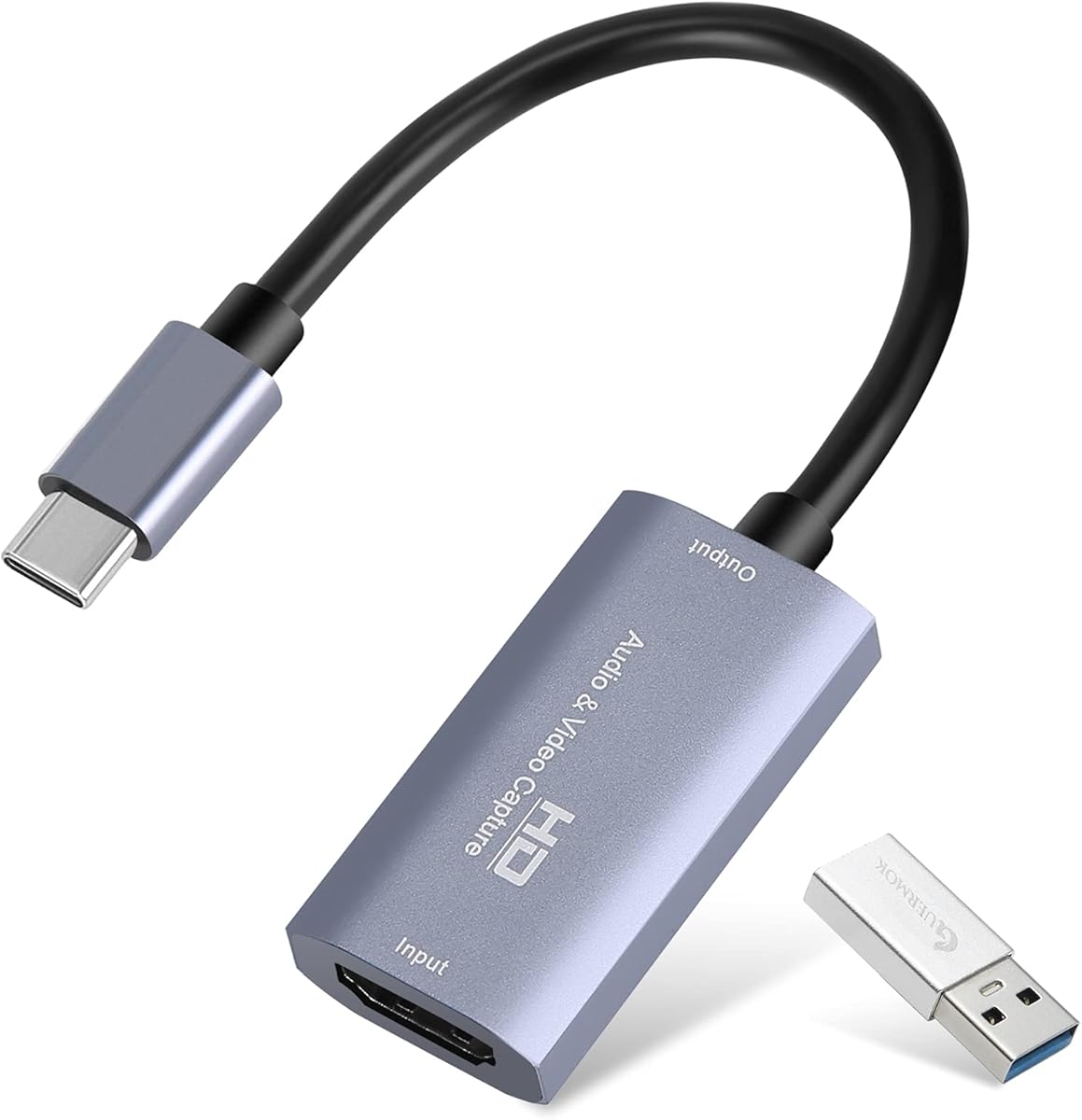
The Guermok Video Capture Card supports 4K30 input with capture output up to 2K30 or 1080p60. Its 4.4 rating and long feature list make it a common-looking option for Linux users who need a portable one-way HDMI-to-USB capture path for recording, meetings, teaching, or live streams.
We may earn a commission when you buy through this link, at no additional cost to you.
The aluminum alloy housing is designed for heat dissipation, and the device requires no external power or additional drivers. It can stream to Facebook, YouTube, and Twitch through compatible Linux software, including OBS Studio, VLC, and PotPlayer. The included USB 3.0-to-USB-C adapter expands connection options, and the compact enclosure is easy to carry.
The one-way design is the primary limitation. It cannot send USB-C video to an HDMI display, and an unsuitable adapter may cause the device to be treated as USB 2.0, limiting bandwidth. Users should therefore prioritize a direct USB 3.0 connection and choose the video format that their computer, application, and available bandwidth can support.
Guermok is a sensible option for a portable Linux recording setup that does not require HDMI loop-out or a dedicated microphone jack. OBS Studio must also be restarted after audio configuration for sound to appear correctly. With that setup discipline in place, the card provides a portable bridge between HDMI sources and a Linux computer.
The small, lightweight enclosure fits easily into a production bag and needs no separate power supply. That makes it convenient for recording away from a permanent desk, especially when the Linux computer already supplies both power and data through USB.
MJPEG and YUY2 support different resolution and bandwidth combinations. Linux users should test the desired format early, especially when the card is connected through the included adapter, because the operating system may negotiate a lower USB connection.
We may earn a commission when you buy through this link, at no additional cost to you.
The Newhope USB 3.0 HDMI Capture Card focuses on a clear task: record HDMI video at 1080p60 while providing real-time HDMI loop-out. It explicitly supports Windows, macOS, and Linux and works with third-party software such as OBS and VLC, making it a practical choice for straightforward Linux capture.
We may earn a commission when you buy through this link, at no additional cost to you.
Its low-latency loop-out allows a console or other source to remain visible on an external display during capture. A 3.5mm headset microphone input supports commentary, while the driver-free design reduces setup friction. Compatible sources include PS4, PS5, Xbox, Nintendo Switch, DSLR cameras, and set-top boxes.
The card does not offer the higher capture resolutions or broader format controls found in specialized alternatives. Its microphone jack specifically accepts a 3.5mm TRS headset microphone, which may not suit users with a larger studio microphone or a different connector. Linux users should also ensure that OBS selects the card and the intended audio input correctly.
For a creator who values uncomplicated 1080p60 recording and local monitoring, Newhope delivers the essential features without a complicated setup. It is best suited to gaming, conferencing, and teaching rather than demanding 4K capture workflows or advanced professional audio routing.
Because the card is driver-free, a Linux user can connect it and begin configuring it in OBS or another UVC-compatible application. This reduces the number of installation steps, although the capture application still has to be configured with the correct video and audio devices.
The headset microphone input allows commentary to be added while game or presentation audio is captured from the source. It offers a convenient single-person workflow, provided the selected software records the correct audio channels and the headset conforms to the stated TRS standard.
We may earn a commission when you buy through this link, at no additional cost to you.
The Capture Card 4K HDMI Video Streaming to USB 3.0 is a compact option aimed at gamers and content creators who want 1080p60 recording. Its 4.4 rating indicates a favorable reception, and its compatibility list includes OBS Studio, Streamlabs, and XSplit, which covers the main software paths many Linux creators use.
We may earn a commission when you buy through this link, at no additional cost to you.
The card accepts HDMI output from a Nintendo Switch, PS5, Xbox Series X, DSLR camera, or PC. Passthrough allows the source to remain visible while capture occurs, and the published low-latency design supports gameplay, live broadcasts, and podcast-style recording sessions.
Linux support is less explicitly documented than for several UGREEN models, so buyers should treat plug-and-play recognition as something to confirm on their own distribution. The feature list also provides fewer details about audio inputs, video formats, and maximum pass-through refresh rates than the more fully specified competing cards.
This model is appealing to Linux users who want a small, uncomplicated capture device for standard 1080p60 streaming. It is less suitable for users who need a specific microphone connector, advanced format selection, or clearly documented Linux testing, but it covers the common requirements of a portable streaming bag.
The focus on OBS Studio, Streamlabs, and XSplit reflects the needs of a typical streaming creator. It provides a familiar workflow without requiring a complex control interface, making it approachable for both first-time streamers and users who simply want a portable recorder.
HDMI passthrough helps a creator play on a console or another source while sending the same feed to the Linux computer. This avoids the need for a separate splitter in a basic setup and preserves a familiar way of interacting with the source.
We may earn a commission when you buy through this link, at no additional cost to you.
The UGREEN 2K@30Hz 1080p60 Video Capture Card combines one of the strongest published rating totals in this group with broad, explicit platform support. It accepts 4K30 input, records at up to 2K30 or 1080p60, and works with Windows, macOS, Linux, phones, and tablets without additional drivers.
We may earn a commission when you buy through this link, at no additional cost to you.
Dual USB-A and USB-C ports make it adaptable to different Linux systems, while 5 Gbps USB 3.0 performance provides the bandwidth required for the stated frame rates. The aluminum alloy housing dissipates heat and shields against electromagnetic interference, and the fixed cable uses tinned-copper conductors intended to resist corrosion and signal loss.
As with other cards in this category, 4K input does not equal 4K capture. Protected content may also be unavailable because PS4, PS5, and Xbox workflows require HDCP to be turned off. iPad use requires iPadOS 17 or later, and the card is unidirectional, moving video from HDMI input to USB output only.
This is the most balanced general recommendation for a Linux user because its documentation is clear, its connectivity is flexible, and its output options suit common streaming and recording needs. It is ideal for OBS Studio, XSplit, PotPlayer, and QuickTime workflows, as well as console, camera, PC, and compatible mobile sources.
The card supports 1080p60 for smooth streaming, 2K30 for a higher-resolution recording path, and 4K30 input for compatibility with modern sources. This gives a Linux creator room to match the output to the application and workflow rather than relying on a single capture mode.
The aluminum alloy enclosure helps move heat away from the internal electronics during extended recording. That passive design is particularly helpful in a stationary Linux streaming setup where the card may remain active for many hours.
We may earn a commission when you buy through this link, at no additional cost to you.
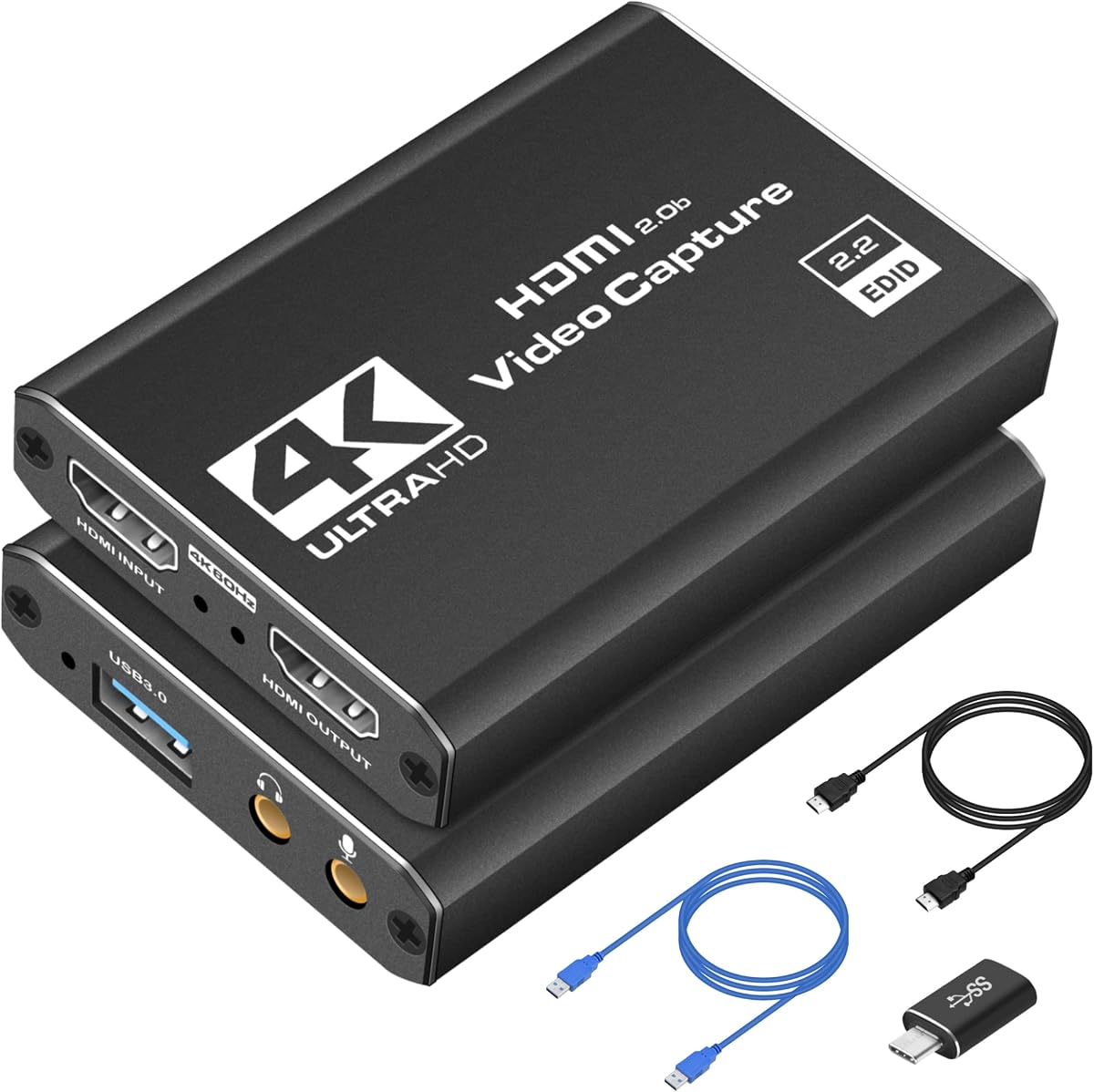
The 4K HDMI Capture Card for Streaming carries a 4.6 rating, the highest among the ten products considered, and combines broad source compatibility with a feature set that is unusually generous for an entry-level option. It captures 1080p60 and up to 2K30, while accepting several high-resolution and high-refresh HDMI input modes.
We may earn a commission when you buy through this link, at no additional cost to you.
Linux, Windows, and macOS systems can recognize it without separate drivers. A 3.5mm microphone input and headphone output support voice commentary and real-time audio monitoring, while the included USB 3.0 and HDMI cables make the initial setup more convenient. Compatible sources include Switch 2, Switch OLED, PS5, PS4, Xbox models, Steam Deck, and cameras.
The specifications distinguish input from output. The card can accept 4K30, 4K60, 1080p120, and 1080p144 signals, but its recording output reaches 2K30 rather than 4K. Users who intend to capture high-frame-rate 4K should therefore interpret the input figures correctly and check whether their software and source can support the desired output.
This is an excellent budget choice for a Linux creator who wants 1080p60 capture, console compatibility, and audio monitoring without moving to a specialized premium model. The included accessories, broad platform recognition, and 18-month warranty add further value, making it a strong first capture card.
Separate microphone and headphone connections make it easier to record narration while monitoring the resulting mix. OBS Studio can use these as distinct audio sources, giving the creator more control than a workflow based only on HDMI-returned audio.
Compatibility extends from modern consoles to the Steam Deck, cameras, and other HDMI devices. This broad range makes the card useful for a Linux workstation that handles games, demonstrations, teaching, and live camera work at different times.
We may earn a commission when you buy through this link, at no additional cost to you.
The AVerMedia StreamLine MINI+ GC311G2 is built around high-refresh gaming: it can display 4K60 HDR or 1440p144 and 1080p240 sources while recording at 1080p60. Its 4.0 rating is lower than those of the general-purpose picks, but its specifications distinguish it as a specialized option for demanding game capture.
We may earn a commission when you buy through this link, at no additional cost to you.
Format flexibility is a major feature. NV12, YUY2, and MJPEG let users align the capture path with different requirements, from efficient workflows to editing and sharing. The card requires no drivers and works with OBS, CameraFi, Camo Studio, and AVerMedia Streaming Center, whose simplified setup is intended to reduce the barrier for new streamers.
Linux compatibility is not explicitly stated in the supplied product information. Since OBS Studio is named, Linux users may be able to use the device in that application, but they should verify UVC recognition and format support before relying on a purchase. AVerMedia's own setup application and platform-specific guidance may also be less useful on Linux than on Windows or macOS.
The StreamLine MINI+ is best for a Linux gamer whose source supports high refresh rates and whose local display is important. It offers stronger passthrough and refresh-rate capabilities than most budget cards, but buyers should confirm the missing Linux detail and ensure their preferred recording application exposes all needed format controls.
Supporting source modes up to 240Hz makes this card relevant to competitive and high-refresh displays. Linux gamers can record at 1080p60 while retaining high-frame-rate visuals on a compatible local screen, provided the source, display, and capture software support the selected mode.
NV12, YUY2, and MJPEG provide different balances of bandwidth, processing demand, and image characteristics. Testing the available options in the intended Linux application can reveal which format produces the best combination of smooth recording, editing quality, and system load.
We may earn a commission when you buy through this link, at no additional cost to you.
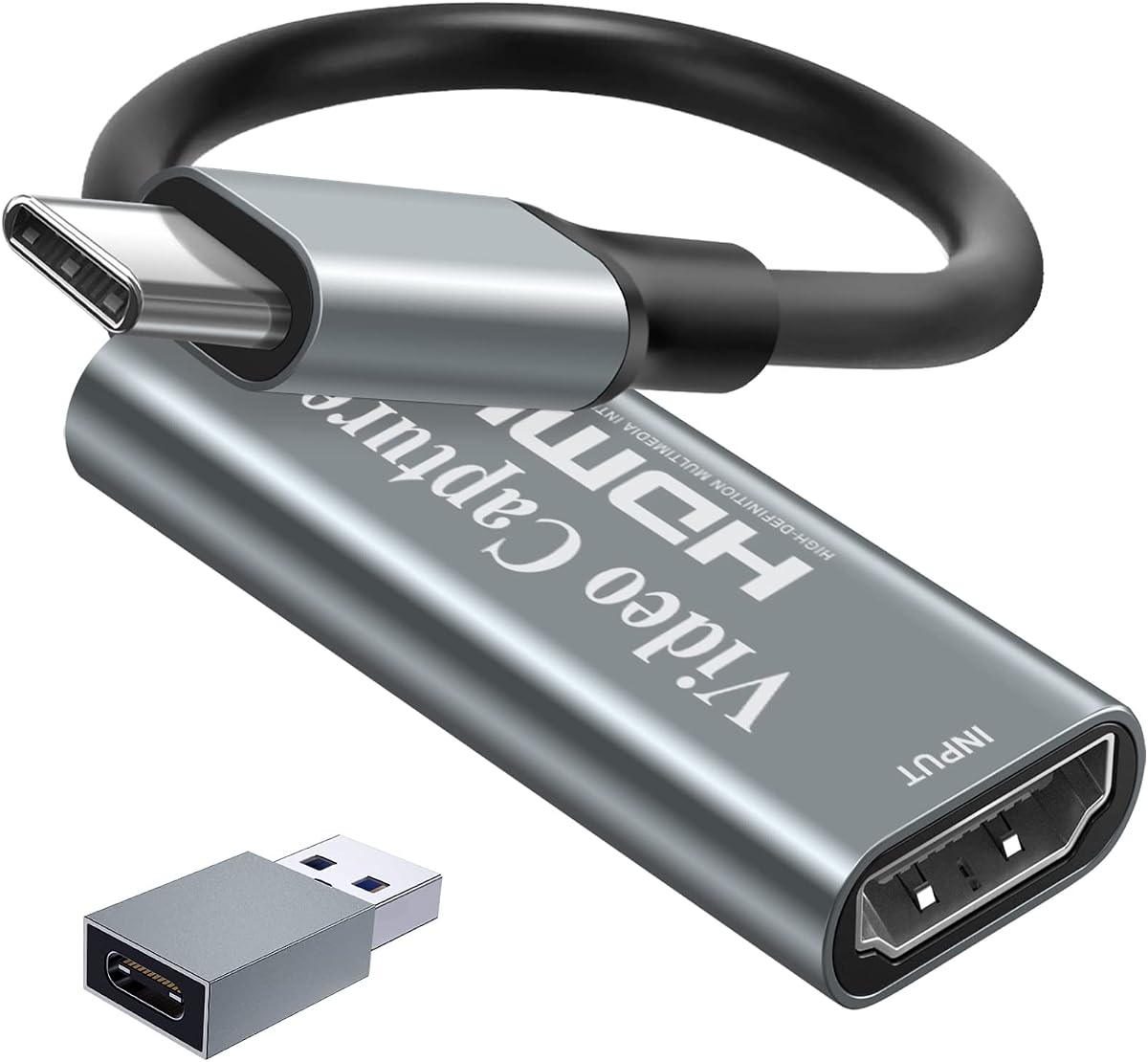
The Papeaso Video Capture Card offers a straightforward HDMI-to-USB-C path with 1080p60 recording and input support stated up to 3840 by 2160 at 60Hz. It explicitly supports Windows, Android, macOS, and Linux, as well as OBS, VLC, PotPlayer, and major streaming platforms.
We may earn a commission when you buy through this link, at no additional cost to you.
No driver installation is required, and the USB-C connection suits modern laptops. Compatible sources include older and newer PlayStation systems, Xbox One, Xbox 360, Nintendo Switch, DVDs, security cameras, webcams, set-top boxes, and DSLR cameras. A USB-C adapter is included for use with a USB-A device.
The important limitation is its high-speed USB 2.0 interface. While 1080p60 can fit within that bandwidth when the right format and settings are used, higher-resolution modes may be constrained. The description also does not identify a dedicated microphone or headphone input, so audio routing will depend on the HDMI source and selected Linux application.
Papeaso is a basic but portable option for recording 1080p60 on Linux. It is best for users whose priority is an inexpensive USB-C workflow and broad source compatibility, not maximum throughput, specialized local monitoring, or a highly documented professional control surface.
A native USB-C connection reduces the need to hunt for a USB-A port and adapter. That convenience is particularly helpful for a portable Linux setup that alternates between computers, although the included adapter is useful when a USB-A port is the only option.
USB 2.0 is sufficient for a carefully configured 1080p60 workflow, but it leaves less headroom than USB 3.0. Linux users should monitor the negotiated connection and avoid assuming that every input resolution listed by the manufacturer can be captured or processed at full quality.
We may earn a commission when you buy through this link, at no additional cost to you.
The AVerMedia Live Gamer Ultra S GC553Pro is the premium specialist in this group. It supports 4K60 HDR and VRR passthrough, handles 1440p144 and 1080p240 sources, and can record VRR at 1440p60 or 1080p240 with AVerMedia Streaming Center. Its 3440 by 1440 and 2560 by 1080 input support also covers common ultrawide formats.
We may earn a commission when you buy through this link, at no additional cost to you.
Audio is another important strength. The card can capture 5.1-channel audio on Windows through Streaming Center, or through Streaming Center Plug for OBS via USB 3.2 Gen 1 Type-C. RGB24 support and high-resolution capture make the device more appropriate for a dedicated production environment than for occasional screen sharing.
Linux is not among the operating systems explicitly named in the supplied description, which instead lists Windows 10 or 11, macOS 13 or later, and iPadOS 17 or later. A Linux buyer should not purchase on the assumption of full feature parity. The underlying UVC behavior and OBS compatibility may permit basic use, but specialized functions tied to AVerMedia's Windows software need direct verification.
The Live Gamer Ultra S is a premium recommendation for a creator who can justify it with high-refresh gaming, HDR passthrough, ultrawide input, or advanced audio requirements. Linux users should first confirm that their distribution, application, and required feature set are supported. Subject to that check, it offers the most specialized specifications in the guide.
4K60 HDR and VRR passthrough preserve a modern console or PC experience on a capable local display. This is valuable when the user wants the visual quality and variable refresh behavior of the source while sending a separate capture feed to the computer.
Support for 5.1-channel capture is a notable step up for a production-oriented card. It can serve a home theater, surround-sound game, or multicamera production more effectively than a design that only captures stereo audio, provided the required Windows-based utility is used.
The card's support for 21:9 input, 1440p144, and 1080p240 makes it relevant to enthusiasts who need more than standard 1080p60. These modes can be valuable for local monitoring even when the broadcast file is recorded at a different resolution.
We may earn a commission when you buy through this link, at no additional cost to you.
The right capture card depends on the source, resolution, frame rate, software, and audio workflow you actually need. Linux users should prioritize reliable USB recognition, published format support, and a connection path that can sustain the intended frame rate.
Prioritize models that clearly state Linux support, driver-free operation, and compatible resolution modes. Specialized cards from established streaming brands may require vendor utilities that are not fully available on Linux, even when basic capture can work.
Match the output specification to your delivery platform and editing workflow rather than choosing on input resolution alone. Make sure the stated mode is also achievable through the included cable and the computer's USB port.
Choose 1080p60 for common streaming, 2K30 for higher-resolution recording, and high-refresh passthrough only when a compatible display makes a difference. Confirm the final frame rate in the capture application.
Prefer USB 3.0 for 1080p60 and higher modes, and check the negotiated speed if performance is inconsistent. USB-C is convenient, but the connector alone does not guarantee USB 3.0 throughput.
Choose a card with loop-out whenever local viewing is required. Test the complete source-to-display chain, since conversion and application preview can add delay even when the hardware itself performs well.
For solo streaming and commentary, a dedicated microphone input is convenient. For multi-channel production, verify the card's Linux audio support, connector standard, and ability to keep voice and program audio synchronized.
Check the source's supported output modes and any HDCP requirements before buying. Use a capture product for original or unprotected content and avoid assuming that every commercial stream or protected console scene can be captured.
Prefer a solid metal enclosure and stable connectors for long sessions. For portable work, balance cooling, durability, size, and the availability of a short or fixed cable that suits the setup.
Begin by connecting the HDMI source to the card's HDMI input and the card's USB output to a USB 3.0 port on the Linux computer. If local monitoring is needed, connect the card's HDMI output to the display using a second HDMI cable. Power the source, set its resolution and refresh rate, and then open the capture application rather than starting a stream immediately.
Configure the video input, capture resolution, frame rate, and format in OBS Studio or your chosen Linux application. Add the relevant HDMI audio source and, if the card has one, select its microphone and headphone connections as separate devices. Preview the scene, check for dropped frames and audio delay, and save the configuration before moving to a full recording or broadcast.
For portable use, protect the card from impact, keep connectors free of dust, and avoid forcing adapters into ports. Do not hot-plug a capture session if the Linux system or application may be writing files. When finished, stop the recording, close the application, and disconnect the USB cable before moving the device. Long sessions benefit from unobstructed ventilation and a direct USB 3.0 connection.
Many capture cards that use standard UVC devices are recognized by Linux, but compatibility is not guaranteed by the presence of a USB connector alone. Check for explicit Linux support, confirm that the device is detected through OBS Studio or another UVC-compatible application, and verify that the intended resolution and video format are available. Vendor-specific features may also require software that is not available on Linux.
A USB 2.0 connection can support 1080p60 when the capture format is selected correctly and the system has sufficient processing headroom. However, it has much less bandwidth headroom than USB 3.0, so higher resolutions or demanding formats may drop frames or fail to negotiate correctly. A direct USB 3.0 connection is preferable for more demanding Linux recording setups.
No. Input and capture output are separate specifications. A card may accept a 4K signal and loop it to a 4K display while sending only 1080p60 or 2K30 to the computer. If the final recording must be 4K, look for explicit 4K capture support and confirm that the source, application, storage, and USB link all support the chosen frame rate.
Loop-out is highly desirable for a natural console setup because it lets the game remain visible on a television or monitor while the Linux computer receives the capture feed. Without it, the display may need to be connected directly to the source, and the computer preview becomes the only way to monitor the captured image. Loop-out also benefits camera, teaching, and presentation workflows.
First confirm that the source is sending the expected resolution and that the capture application has selected the correct video device and format. Check for HDCP-protected content, try a direct USB 3.0 connection, and inspect the system log to determine whether the device negotiated a lower USB speed. Rebooting after changing OBS audio or video settings can also help the application reinitialize the device.
No capture card should be expected to bypass copy protection. Several product descriptions specifically state that HDCP must be disabled on applicable PS4, PS5, and Xbox sources. Capture should only be attempted for original, unprotected material or when the content owner has explicitly allowed recording.
OBS Studio is the most widely mentioned option among the reviewed cards and is suitable for live streaming, recording, and audio mixing. VLC or PotPlayer can also serve simpler recording and monitoring tasks, while Zoom may be relevant for online meetings. The best choice depends on the required output format, audio routing, scene control, and recording features.
Yes, provided the card offers a compatible USB-C connection or a suitable adapter and the negotiated USB speed is adequate for the intended format. USB-C describes the connector, not the transfer rate, so a Linux user should confirm USB 3.0 support where 1080p60 or higher frame rates are required. Connecting directly to the computer is more dependable than using an unpowered hub.
The UGREEN 2K@30Hz 1080p60 model stands out as the strongest all-around recommendation because it combines explicit Linux support, USB-A and USB-C connectivity, useful 1080p60 and 2K30 output modes, and a 4.5 rating. The 4K HDMI Capture Card for Streaming is an attractive budget alternative with a 4.6 rating, 4K60 input, and dedicated microphone and headphone connections.
Prioritize the features your workflow will actually use rather than the largest headline number. A Linux creator should confirm UVC recognition, choose a genuine USB 3.0 path, match the capture resolution to the delivery platform, and determine whether loop-out or dedicated audio is necessary. Premium models make sense when high-refresh passthrough, HDR, VRR, ultrawide input, or advanced multichannel audio justify the added cost.
Product specifications and prices can change, so check the current listing, supported Linux application, cables, and source-device restrictions before buying. For a simple 1080p60 setup, the budget picks are sufficient; for a specialized gaming or professional production environment, a higher-tier card may provide the necessary passthrough, format, and audio capabilities.