
USB3.2 Dual-Connector Front Panel Adapter
5.0Editor score
20Gbps USB-C port
Two USB 3.0 ports
Dual motherboard connectors
PCI bracket included
Front panel USB C headers add a conveniently accessible USB-C connection to a desktop PC case, whether you are building a new system or modernizing an older chassis. A useful adapter should match your motherboard header, fit the available space, support the required data rate, and route cleanly without blocking other components.
This guide compares ten extension cables, panel-mounted adapters, PCIe expansion cards, and internal hubs based on their documented connectors, supported USB generations, mounting options, cable length, shielding, and installation requirements. The list includes single-port solutions, combined USB-C and USB-A adapters, and multiport hubs for 3.5-inch drive bays.
Each review identifies the product's strongest use, important limitations, and the systems it best suits. Ratings and technical details reflect the supplied product information, while availability and prices can change over time. Always verify your motherboard headers and case dimensions before ordering.
5.0Editor score

4.6Editor score

4.8Editor score
As an Amazon Associate we earn from qualifying purchases.
The table below compares connector type, maximum documented speed, mounting method, and notable feature of each adapter, making it easier to match a solution to a particular motherboard and case.


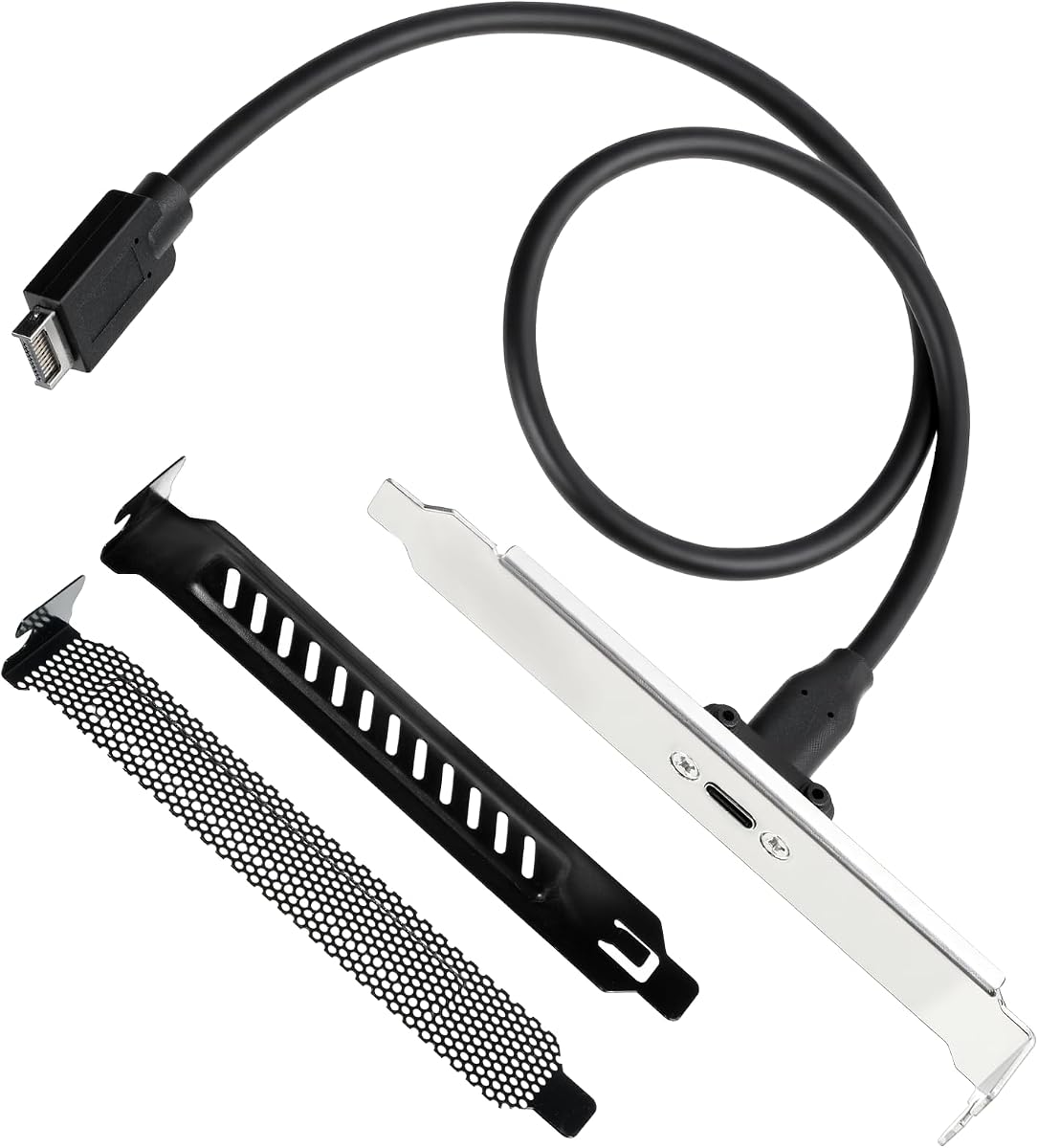

This GRAUGEAR extension is a focused solution for adding a panel-mounted USB-C port to a desktop with a 20-pin USB 3.2 Type-E header. It carries a 4.6 rating and stands out for its documented support for USB 3.2 Gen 2×2 at up to 20Gbps, USB 3.2 Gen 2 at 10Gbps, and backward compatibility with Gen 1 at 5Gbps. Its 23.6-inch cable provides useful routing room between a motherboard header and a case-mounted connector.
We may earn a commission when you buy through this link, at no additional cost to you.
The adapter combines a male Type-E internal connector with a panel-mount USB-C female socket, allowing the connector to be positioned at the front of the chassis without replacing the entire case wiring. The included PCI bracket offers a conventional way to secure the socket to an available expansion-slot opening. Double-shielded wiring and sturdy metal construction are particularly relevant inside a densely packed computer where electrical noise and cable movement can affect reliability.
The important limitation is that maximum throughput depends on the motherboard and connected device. The product information specifically notes that a dedicated 20Gbps port is required to achieve the full 20Gbps rate. Older motherboards may only have a 19-pin USB 3.0 header, which cannot be connected directly to this Type-E input without an appropriate conversion solution. A Type-C receptacle alone also does not guarantee 20Gbps performance.
This is an excellent choice for a modern builder who wants one clean, front-mounted USB-C connection and can confirm a 20-pin Type-E header. It combines a useful cable length, robust construction, and a mounting bracket without adding unnecessary ports. Choose it when high potential bandwidth, simple installation, and a dedicated front-panel connector matter more than multiport expansion.
The key benefit is support for USB 3.2 Gen 2×2, allowing compatible devices to use substantially more bandwidth than a basic 5Gbps USB connection. Actual file-transfer results still depend on the host controller, storage device, cable, and software involved.
A 23.6-inch lead gives builders room to place the motherboard header and front-panel socket in different locations. The supplied PCI bracket adds another mounting option for cases with a suitable expansion-slot opening.
We may earn a commission when you buy through this link, at no additional cost to you.
This 60cm GRAUGEAR adapter takes the basic Type-E-to-panel-USB-C concept and emphasizes straightforward PC integration. It has a 4.6 rating, supports USB 3.2 Gen 2×2 at up to 20Gbps, and falls back to 10Gbps Gen 2 and 5Gbps Gen 1 operation. The female USB-C panel connector is intended for phones, tablets, flash drives, mice, hubs, and other compatible peripherals.
We may earn a commission when you buy through this link, at no additional cost to you.
Its primary appeal is routing flexibility. The 60cm cable is long enough for larger cases or layouts where the front connector is far from the motherboard header. A metal PCI bracket gives the builder a way to anchor the connector to an expansion opening. The product also uses double-shielded wiring and plug-and-play operation, avoiding driver installation and reducing the number of components involved.
This adapter is not a universal conversion solution. It requires a 20-pin USB 3.2 Key-A Type-E header on the motherboard, and reaching 20Gbps requires the host system to provide a dedicated Gen 2×2 controller. Users with only a 19-pin USB 3.0 header need a separate Type-E PCIe card or a front-panel adapter designed to convert that connection.
For someone assembling a new PC, this is a practical way to create a front USB-C port without redesigning the case's native connector. Its generous cable and included bracket make it particularly useful in roomy enclosures. It is best suited to builders who want one high-speed port, understand their motherboard headers, and prefer a straightforward extension cable.
The 60cm lead reduces the chance that the panel socket will pull against the motherboard header or sit awkwardly in a full-size tower. It also provides more freedom when the case's front USB-C opening is not directly adjacent to the board.
A single panel-mounted USB-C socket keeps the installation compact and visually clean. This makes the adapter suitable for builders who need front access for one drive, phone, or other peripheral rather than a full bank of ports.
We may earn a commission when you buy through this link, at no additional cost to you.
This GRAUGEAR adapter combines a 20Gbps panel-mounted USB-C port with a USB-A connection, making it more versatile than a single-connector extension. Its 4.6 rating reflects a product designed for builds that have both a 20-pin USB 3.2 Type-E header and a 19-pin USB 3.0 header. The USB-C side supports USB 3.2 Gen 2×2 and Gen 2 modes, while the USB-A side supports up to 5Gbps.
We may earn a commission when you buy through this link, at no additional cost to you.
Two motherboard connections give the user access to both USB-C and Type-A peripherals from one panel adapter. The 20Gbps path is valuable for compatible external storage, and the USB-A port remains useful for keyboards, mice, flash drives, and older accessories. A PCI bracket is included for mounting, and double shielding is used to limit interference inside the chassis.
The requirement for two headers is the central trade-off. The supplied information warns that older motherboards may lack the 20-pin Type-E header, so not every PC can use the product as intended. The USB-A side is also limited to USB 3.0 speed. Furthermore, reaching the stated 20Gbps requires a compatible host controller and a dedicated high-speed device path.
Choose this adapter when a case needs both front USB-C and front USB-A and your motherboard provides the corresponding headers. It offers a more balanced front I/O arrangement without requiring a multi-bay hub. It is less appropriate for compact systems with limited header availability or for users who only need one connector.
The combination of USB-C and USB-A expands everyday usefulness without taking over a 3.5-inch drive bay. It is well suited to systems that frequently move between modern and legacy accessories.
The Type-E connection serves the 20Gbps USB-C port, while the 19-pin input serves the 5Gbps USB-A port. Keeping these paths distinct supports the documented speed tier of each connector.
We may earn a commission when you buy through this link, at no additional cost to you.
This 3.5-inch bay hub is the most port-dense option in the group, adding two 10Gbps USB-C sockets and two 10Gbps USB-A ports to a desktop case. It carries a 4.2 rating and is intended for builders willing to dedicate an unused floppy-drive bay to front-panel expansion. All four ports support USB 3.2 Gen 2, with backward compatibility for USB 3.0 and USB 2.0 devices.
We may earn a commission when you buy through this link, at no additional cost to you.
The hub draws power through a 15-pin SATA power connector and data through a 20-pin USB 3.2 Key-A Type-E header. That makes it more involved than a simple extension cable, but it provides the most useful selection of front connectors. The product also includes six screws and documents over-current, over-voltage, and short-circuit protection.
Its requirements are substantial. The motherboard must have the specified Type-E header, and the case must provide a suitable 3.5-inch bay, SATA power, and adequate internal clearance. The stated 10Gbps capability still depends on the connected devices and host system. Its larger metal assembly may also be less convenient in compact cases where drive-bay space is already scarce.
This hub is ideal for a work-focused desktop that needs frequent access to several USB-C and USB-A peripherals. It is the strongest choice for sheer front-port count, although it is less attractive for a minimalist build or a system without the correct header. Verify all physical and electrical requirements before ordering.
Two USB-C and two USB-A sockets cover both modern and conventional accessories. The balanced layout is practical for frequently used storage, input, and networking devices.
Over-current, over-voltage, and short-circuit protection add safeguards for a hub installed near numerous external devices. The included screws help keep the metal assembly stable inside the drive bay.
We may earn a commission when you buy through this link, at no additional cost to you.
The Sinefine expansion card approaches front USB-C access from the PCI Express side rather than relying exclusively on a motherboard Type-E header. It has a 4.5 rating and provides one front USB-C port and one front USB-A port at USB 3.2 Gen 1 speed of up to 5Gbps. The package includes a 19-pin socket and a Type-E internal connector, expanding the ways it can be integrated.
We may earn a commission when you buy through this link, at no additional cost to you.
Installing the card in a free PCIe x1 or larger slot can make front USB-C access possible in systems that lack the expected motherboard header. The card does not require an external power adapter and is described as delivering stable power for connected devices. Its listed operating-system coverage includes current Windows versions and several Linux distributions, although specific system combinations can behave differently.
This option is slower than the 20Gbps and 10Gbps adapters in the guide. It also occupies a PCIe slot that might otherwise be used for a graphics card, capture device, storage controller, or other upgrade. The product information includes model-specific compatibility references and notes that certain older or specialized systems may require drivers or encounter conflicts.
Choose the Sinefine card when your motherboard lacks a usable Type-E header but has a spare PCIe slot and 5Gbps is sufficient. It is a practical bridge for selected older or unusual desktop configurations. Users needing maximum transfer rates or conserving expansion slots should instead favor a direct Type-E header adapter.
The PCIe connection creates a path to front USB-C access even when the motherboard cannot provide the expected Type-E header directly. This can be valuable in select legacy or compact builds.
The card draws the required operating power through the computer rather than requiring a separate external adapter. That simplifies cable routing but does not increase its documented 5Gbps data limit.
We may earn a commission when you buy through this link, at no additional cost to you.
This GRAUGEAR 3.5-inch hub combines a 20Gbps USB 3.2 Gen 2×2 USB-C port with two 5Gbps USB 3.0 Type-A ports. It has a 4.6 rating and fills an unused floppy-drive bay to provide more front connectivity than a basic extension cable. The USB-C path can reach Gen 2×2 performance, while the Type-A ports remain limited to 5Gbps.
We may earn a commission when you buy through this link, at no additional cost to you.
Data connections include a 20-pin Type-E header and a 19-pin USB 3.0 header. The included cables and six mounting screws create a complete drive-bay installation, while documented over-current, over-voltage, and short-circuit protection add safety for multiple connected devices. The unit also supports backward-compatible USB 3.0 and USB 2.0 operation within the relevant speed limits.
Users must have both required motherboard headers and an available 3.5-inch bay. The installation also needs enough space for the metal housing and cable bend radius. As with other Type-E adapters, full 20Gbps performance depends on a dedicated host controller, the peripheral, and the complete connection path.
This hub is a good middle ground between a one-port cable and a larger four-port hub. It suits builders who want one high-speed USB-C connector alongside familiar USB-A access. The trade-off is the loss of a 3.5-inch bay and the requirement for two motherboard header connections.
The Gen 2×2 USB-C connection gives compatible storage and other peripherals access to substantially more bandwidth than 5Gbps. The accompanying USB-A ports preserve compatibility with common peripherals.
Using a 3.5-inch bay creates a stable location for multiple front connectors. The included screws secure the assembly and help reduce movement during cable insertion.
We may earn a commission when you buy through this link, at no additional cost to you.
This compact adapter is designed for one narrow but common situation: adding a front USB-C connection to a motherboard that has a nine-pin USB 2.0 header. It carries a 4.8 rating, operates without drivers, and uses a 17cm cable for straightforward routing. The resulting panel-mounted socket provides USB-C connectivity with a maximum data rate of 480Mbps.
We may earn a commission when you buy through this link, at no additional cost to you.
Its greatest strength is compatibility with older or entry-level motherboards that lack USB 3.x internal headers. Users can connect suitable USB-C accessories such as flash drives, mice, or simple charging devices without installing a PCIe adapter. The short cable and minimal assembly also make it less likely to interfere with other internal components.
The limitations are significant and should be understood before purchase. It is not compatible with a 19-pin USB 3.0 header, does not provide USB 3.x speed, and does not support video or audio output. It is therefore unsuitable for external storage that needs faster transfers or for systems expecting DisplayPort Alt Mode or USB-C audio functionality.
Choose this cable when the goal is inexpensive front USB-C access on a motherboard with USB 2.0 only. It is a simple convenience adapter, not a high-performance front-panel solution. Modern builders with Type-E or 19-pin headers should choose a faster option with more capability.
A nine-pin USB 2.0 header remains present on many older and simpler motherboards. This adapter gives those systems a front-facing USB-C socket without requiring a PCIe card.
The 480Mbps specification is adequate for basic peripherals but restrictive for large file transfers. No video or audio support means it should not be treated as an all-purpose USB-C display connection.
We may earn a commission when you buy through this link, at no additional cost to you.
This adapter delivers a 20Gbps-capable panel-mounted USB-C connection through a 20-pin Type-E A-Key male input. Its 3.8 rating is the lowest among the listed products, but the core specification is aimed at users who want a high-bandwidth front connection. It also includes a 50cm cable and mounting hardware for installation in a desktop case.
We may earn a commission when you buy through this link, at no additional cost to you.
The adapter's clear connector labeling makes orientation easier to understand during installation. Metal and PVC construction provides a rigid panel socket and a flexible internal cable, while the included PCI brackets offer secure mounting and two slot covers help protect openings from debris. It supports modern USB-C phones, tablets, storage devices, and peripherals without requiring driver installation.
The product still requires a compatible 20-pin Type-E motherboard header and a host controller capable of delivering the stated 20Gbps. Older systems with only a 19-pin USB 3.0 header cannot use it directly. Its lower user rating may also warrant checking recent customer feedback for installation or fit details before buying.
This option is most appealing to a builder with a modern Type-E-equipped motherboard who wants one flexible, high-speed front port. It is less attractive than higher-rated alternatives for users who prioritize a longer record of customer satisfaction, and it offers only one external connector.
Labeling on the 20-pin Type-E connector helps reduce guesswork during installation. This is particularly helpful in crowded cases where cable orientation is difficult to inspect.
The supplied bracket and slot covers provide the parts needed to secure the connector and manage unused openings. The 50cm lead offers reasonable routing flexibility for many mid-size towers.
We may earn a commission when you buy through this link, at no additional cost to you.
The SinLoon extension provides a panel-mounted USB-C port from a 20-pin Type-E header at up to 10Gbps. It carries a 4.3 rating and supports USB 3.2 Gen 2 as well as backward-compatible Gen 1 devices. The 30cm cable is shorter than most alternatives in the list, which can suit compact cases where excess cable would be awkward.
We may earn a commission when you buy through this link, at no additional cost to you.
The connector can be secured with panel-mount screws, and its 20mm screw spacing is an important detail to confirm against the case opening. A flat TPE cable is designed for repeated bending and routing around internal components. The reversible USB-C interface simplifies everyday use, while the documented 100W power supply support makes it relevant for compatible charging applications.
Although the product describes the Type-C connection as USB 3.1, the stated data ceiling is 10Gbps, not 20Gbps. Users expecting Gen 2×2 throughput should select a product explicitly designed for that standard. The motherboard must also provide a suitable USB 3.1 Type-E port, and actual charging output depends on the connected device, host capabilities, and relevant electrical standards.
This is a sensible pick for a smaller case or a build with a closely positioned Type-E header and front panel opening. It offers a useful combination of 10Gbps data support and 100W charging in a slim extension. It is less appropriate for users who specifically need 20Gbps transfer rates.
Supporting up to 100W makes the adapter relevant for compatible devices that need meaningful charging power. The same socket also handles data for compatible USB-C storage and accessories.
The 30cm flat lead is easy to fold and route in compact builds. Its flexibility helps reduce awkward loops around the motherboard tray and nearby cooling hardware.
We may earn a commission when you buy through this link, at no additional cost to you.
This adapter combines one 20Gbps panel-mounted USB-C port with two 5Gbps USB-A ports, making it one of the most versatile options in the guide. It has a 5.0 rating and uses a 20-pin USB 3.2 Key-A Type-E input alongside a 19-pin USB 3.0 input. The Type-C connection supports Gen 2×2, Gen 2, and backward-compatible Gen 1 operation.
We may earn a commission when you buy through this link, at no additional cost to you.
Three front-facing sockets cover modern high-speed storage as well as conventional accessories. The supplied PCI bracket helps secure the assembly, while metal construction and double-shielded wiring are intended to support durability and stable signal transmission. Installation is plug-and-play and does not require separate software or drivers.
The adapter is not appropriate for every motherboard because it expects both specified internal headers. Its two USB-A outputs are limited to 5Gbps even though the USB-C side can use the much faster 20Gbps mode. Full speed still depends on a compatible motherboard controller, connected device, and complete signal path.
This is the top choice for users who want several front connectors and a high-speed USB-C path in one cable-based assembly. It offers more flexibility than a single-port extension without taking a 3.5-inch bay. Confirm header availability and case clearance, then choose it as a comprehensive front-panel upgrade.
The USB-C socket and two USB-A sockets provide a practical mix for everyday accessories. Users can leave frequently connected devices attached without continually reaching behind the computer.
Double shielding and metal components support reliable internal cable performance. The included bracket offers a stable mounting point for the panel connector.
We may earn a commission when you buy through this link, at no additional cost to you.
The right front-panel USB-C adapter depends first on the motherboard header you already have, followed by the required transfer speed, case mounting method, and number of ports you actually need.
Begin by inspecting the motherboard manual and the headers near the USB ports. A 20-pin USB 3.2 Key-A Type-E header is distinct from a 19-pin USB 3.0 header and a nine-pin USB 2.0 header. These connectors may look similar at a glance, but they expose different pin arrangements and capabilities. Products in this guide require one or more of these exact inputs, so the header is the most important compatibility checkpoint.
Choose the adapter whose motherboard-side connector exactly matches your board. Do not rely on physical shape alone when keying differs.
USB-C does not describe one universal speed. The reviewed products range from a 480Mbps USB 2.0 adapter to 10Gbps Gen 2 and 20Gbps Gen 2×2 models. External storage, large media files, and high-resolution capture devices benefit from faster paths, while mice, keyboards, and basic charging accessories may not need the highest rate. The connector and every component along the path must support your intended speed.
Prioritize the lowest documented speed of the adapter, host controller, cable, hub, and peripheral.
A 20Gbps USB-C port is not automatically a 20Gbps connection. The motherboard must expose a dedicated USB 3.2 Gen 2×2 host path, and the connected device must also support that mode. The Type-C standard is physically capable of operating at both 10Gbps and 20Gbps, but a compatible port, controller, and endpoint are all necessary to reach the higher rate.
Treat 20Gbps labeling as a capability rather than a guaranteed result for every device.
Single-port adapters are visually compact and work well for one phone, drive, or accessory. Dual-connector designs add USB-A convenience, while the 3.5-inch bay hubs provide three or four front sockets. More ports require more motherboard headers, more internal cable routing, and sometimes SATA power. Avoid paying for unused connectivity if a single Type-E-to-USB-C extension satisfies your needs.
Choose the smallest port count that covers your daily accessories and planned storage upgrades.
Front-panel adapters may mount through an existing case opening, a PCI expansion-slot bracket, or a 3.5-inch drive bay. Measure the available area and inspect nearby components before ordering. A bracket can prevent an unused slot opening from collecting dust, while a bay hub creates a more substantial assembly that may interfere with drives, cables, or airflow if space is tight.
Check screw spacing, bay dimensions, and clearance around the connector body.
Cable length should be long enough to connect the motherboard header to the desired panel location without stretching, but not so long that it creates awkward loops. The reviewed products range from approximately 17cm to 60cm, with most extension cables measuring 30cm or 50cm. Flat or flexible cables can be easier to route around motherboard features, while metal or shielded constructions may have a larger bend radius.
Measure the actual route before selecting a length, and allow room for service loops.
Data speed does not guarantee charging wattage, and a front data port does not necessarily carry display or audio signals. Some products explicitly advertise 100W power delivery, while the USB 2.0 adapter is documented as supporting neither video nor audio. If you plan to use the connector for a monitor, headset, docking station, or laptop charging, verify that the adapter, motherboard, case wiring, and connected device support the required function.
Do not assume USB-C shape alone guarantees power or display features.
Internal USB hubs should include safeguards against over-current, over-voltage, and short-circuit conditions. Metal panel hardware and double-shielded wiring can improve mechanical durability and reduce signal interference, particularly in compact systems with high-speed devices. For a single extension, flexible internal wiring and secure panel fasteners matter more than elaborate protection circuits, but construction quality still influences long-term usability.
Favor secure mounts, suitable shielding, and protection appropriate to the number of devices.
Before installation, shut down the computer, disconnect the power cable, and consult the motherboard manual to identify the correct internal header. Confirm that the adapter's connector matches both the header type and orientation. Route the lead loosely through the chassis, avoid sharp bends, and keep the cable away from fans, heatsinks, and moving parts before securing the panel connector.
Connect the motherboard-side plug firmly, then attach the panel socket to the case opening or included bracket. Follow the labeled orientation and tighten the mounting screws without overtightening. For a 3.5-inch bay hub, attach the required data and power cables and confirm that the housing does not interfere with drive trays. Once all connections are in place, restore power and test the front port with the intended devices.
For care, avoid inserting objects into the USB-C receptacle and do not pull a connected cable sideways when removing a device. Keep the connector dry and free of dust, especially in dusty environments. If transfer performance is lower than expected, test with a different device or port, confirm that the motherboard supports the advertised USB generation, and inspect the internal connector for looseness or damage.
Most high-speed adapters in this guide require a 20-pin USB 3.2 Key-A Type-E header. One budget model uses a nine-pin USB 2.0 header, while the PCIe expansion card offers an alternative for certain systems without the expected Type-E connection. Check the motherboard manual carefully because a 19-pin USB 3.0 header is not the same as a 20-pin Type-E header.
Not directly. The 19-pin USB 3.0 header and 20-pin Type-E Key-A header use different pin arrangements. A compatible USB front-panel adapter that converts 19-pin to 20-pin Type-E, or a compatible Type-E PCIe card, may be needed. Verify all parts of that conversion chain before installation.
No. The connector shape alone does not determine speed. A 20Gbps result requires a 20Gbps-capable adapter, a matching USB 3.2 Gen 2×2 host controller, a compatible connected device, and a complete uncompromised connection path. Some adapters in this guide support only 5Gbps or 10Gbps.
That depends on the adapter, motherboard header, case wiring, and connected display or headset. The budget USB 2.0 adapter explicitly does not support video or audio output. For other products, do not assume display functionality from the USB-C designation; confirm that the motherboard path supports the required alternate mode or accessory connection.
Most Type-E extension products use an existing motherboard header and do not require a PCIe slot, although some include a PCI bracket solely for mounting. The Sinefine PCIe expansion card is the exception because it installs directly into a PCIe x1 or larger slot. Using that card consumes an expansion slot that could otherwise serve another device.
A cable adapter usually adds one USB-C socket and connects directly to a motherboard header. A 3.5-inch hub mounts in a drive bay and can provide several USB-A and USB-C ports, but it also requires more internal connections, power, and physical space. A hub is better for frequent peripheral access, while a cable is usually cleaner and simpler for one port.
It may, but only when the adapter, motherboard port, cable, and device support the required power level. One reviewed product documents support for up to 100W, while others do not make an equivalent wattage claim in the supplied information. Charging can also be limited by the source port even when the physical USB-C connection is correct.
First confirm that the motherboard has the exact required header and that the internal connector is fully seated. Test the port with a second cable and device, then restart the computer to force a fresh connection. Inspect the case opening and bracket for misalignment, and check whether the operating system recognizes the device. Also verify that the motherboard's USB generation matches the advertised adapter speed.
The GRAUGEAR 20Gbps Type-E extension is the strongest all-around choice for a modern motherboard with the required header, while the USB3.2 dual-connector adapter offers the most complete front-port arrangement. For a motherboard limited to USB 2.0, the compact nine-pin-to-Type-C cable provides a simple and well-rated way to add front access.
Prioritize exact header compatibility before considering speed or port count. Then decide whether you need one USB-C socket, a mixture of USB-C and USB-A, or a full drive-bay hub. Check mounting space, cable routing, charging requirements, and whether your motherboard can provide the documented USB generation for full performance.
Prices and availability can change, so review the current listing details before purchasing. Confirm the adapter's dimensions, connector shape, required headers, and supported functions against your case and motherboard. That small amount of preparation is the surest way to avoid an expensive mismatch.


