
THUSTAR 8MP Document Camera & Webcam 4K
4.4Editor score
8MP document capture
Three-level LED lighting
Dual built-in microphones
A document projector for the classroom turns worksheets, handwriting, demonstrations, and small objects into a shared visual experience. The right model should provide sharp images, dependable lighting, flexible positioning, and connections that work with your existing computer, interactive board, conferencing platform, or display.
We compared ten classroom projectors using the specifications and feature information available for each product. The list covers USB document cameras, wireless visualisers, overhead projectors, and conventional LCD, DLP, and short-throw models, with attention to resolution, brightness, zoom, audio, capture area, and installation needs.
Each review explains where that model is strongest and which teachers or institutions may prefer it. Ratings and specifications provide a useful starting point, but classroom conditions and software requirements vary. Product prices change, so verify current availability and cost before making a final purchasing decision.
4.4Editor score
4.5Editor score

4.6Editor score
As an Amazon Associate we earn from qualifying purchases.
This side-by-side comparison covers document cameras and classroom projectors, including USB, wireless, HDMI, VGA, overhead, LCD, DLP, and short-throw designs. It highlights the practical differences in resolution, lighting, audio, mobility, software, installation, and device compatibility.




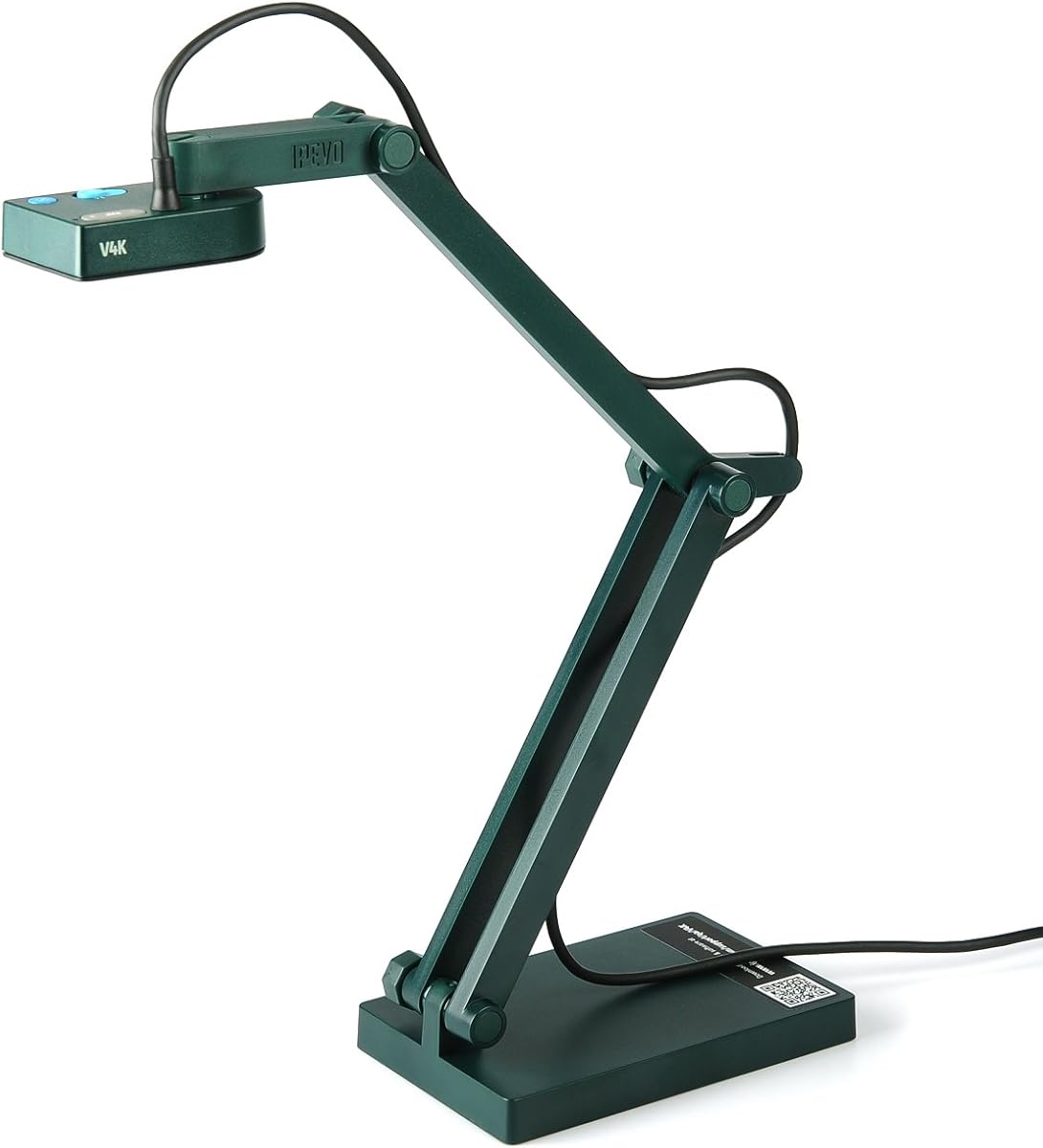
The IPEVO V4K is a USB document camera designed for teachers who need sharp visual coverage without carrying a complete overhead projector around. Its 4.5 rating reflects a strong balance of image detail, dependable streaming, flexible positioning, and broad computer compatibility. It is particularly suitable for live demonstrations, distance learning, remote teaching, and ordinary classroom presentations.
We may earn a commission when you buy through this link, at no additional cost to you.
Its 8-megapixel camera captures still images up to 3264 by 2448 pixels, giving instructors enough detail for worksheets, printed graphics, and small classroom objects. Live video can run at up to 30 frames per second at 1920 by 1080, while the maximum 3264 by 2448 mode supports 15 frames per second. The Sony CMOS sensor and noise reduction are valuable when classroom lighting is imperfect.
The multi-jointed stand allows frequent changes in height and angle, and its maximum shooting area of 13.46 by 10.04 inches suits many common teaching materials. The stated system requirements emphasize capable computers, including Intel Core i5 processors, adequate memory, and sufficient video memory for lag-free full-HD streaming and recording.
This is the most balanced choice for a teacher who already works from a Mac, Windows PC, or Chromebook and wants a dedicated visualizer for live lessons. It lacks the VZ-X model's wireless flexibility and built-in lighting, but its wired reliability, high-resolution sensor, and low-latency performance make it an especially practical recommendation for conventional computer-based classrooms.
The 8MP sensor makes fine text, diagrams, and physical demonstrations more legible on a shared screen. Its full-HD streaming mode also supports smooth movement when a teacher points to details or manipulates an object.
Compatibility with Mac, Windows, and Chromebook systems broadens its usefulness across mixed-device schools. The camera can operate within different software and applications for presentations, conferencing, and recorded instruction.
We may earn a commission when you buy through this link, at no additional cost to you.
The Apollo Horizon 2 takes a traditional approach to classroom projection. Rather than mounting a small sensor over a desk, it provides a 10-by-10-inch open stage where a teacher can place paper, maps, or physical objects. Its 4.2 rating makes it a credible option for institutions that value hands-on overhead visibility and familiar projector-style operation.
We may earn a commission when you buy through this link, at no additional cost to you.
A 2000-lumen output is the headline performance specification. The open-head design allows learners to see materials from above without a box obscuring the center of the stage. LCD display, VGA, and USB support provide several ways to integrate the unit with classroom presentation equipment and connected computers.
The main advantage is the amount of material that can be shown at once. Teachers can use a broader stage than most compact document cameras accommodate, which is helpful for large worksheets, engineering models, art materials, maps, and hands-on science demonstrations. That physical openness also makes it easier for a class to gather around and observe a tabletop activity.
The trade-off is that the Apollo is a fixed classroom visualizer rather than a highly portable camera. Its published information is also limited compared with the detailed specifications of the digital models in this list. Buyers should confirm the full output specification, included accessories, and local availability. It is best suited to schools seeking a large-stage overhead projector for a dedicated teaching position.
The 10-inch square stage allows teachers to arrange several sheets or a larger physical object without immediately working around the constraints of a compact camera head. It is especially useful for collaborative demonstrations.
VGA and USB provide familiar routes into many classroom display systems. Compatibility should still be checked against the installed projector, computer, driver requirements, and resolution preferences.
We may earn a commission when you buy through this link, at no additional cost to you.
The IPEVO VZ-X is the most flexible premium document camera in this guide, offering Wi-Fi, HDMI, and USB connectivity in one unit. Its 4.6 rating reflects strong performance across image quality, portability, and device support. It is a strong fit for teachers who move between rooms, teach from an iPad or Android device, or need to present without relying on a single cable.
We may earn a commission when you buy through this link, at no additional cost to you.
The 8MP Sony sensor records HD video at 1920 by 1080 and 30 frames per second in Wi-Fi and HDMI modes. In USB mode, it can reach near-4K resolution of 3264 by 2448. An integrated LED illuminates the viewing area, while the stand accommodates 16:9 and 4:3 working areas and the swiveling head supports different camera orientations.
Battery life of approximately nine to twelve hours supports a complete class or presentation session. The stated wireless range extends up to 33 feet, giving a teacher room to capture objects elsewhere in the room. Buttons on the camera body allow adjustments without returning to a computer, a helpful feature during live instruction.
The VZ-X is the premium recommendation for schools that prioritize mobility and connection flexibility. It is more elaborate than a basic USB visualiser, but the wireless option, multiple interfaces, long battery life, and high-resolution sensor justify that complexity. Teachers should still confirm that their preferred conferencing software and display device support the relevant connection mode.
A wireless range of up to 33 feet allows the camera to move away from the desk or display. That makes it practical for live science work, art demonstrations, and group activities where students need a close overhead view.
Wi-Fi support for iOS, tvOS, and Android, combined with HDMI and USB, reduces the chance of being locked into one classroom ecosystem. The physical controls improve control during fast-paced demonstrations.
We may earn a commission when you buy through this link, at no additional cost to you.
The THUSTAR A3-Size combines a document camera, webcam, and LED light in an approachable package. Its 4.4 rating is supported by a broad set of teaching features at a budget-oriented position. It is especially appealing to teachers who need a plug-and-play visualiser for distance education, demonstrations, worksheets, and online lessons.
We may earn a commission when you buy through this link, at no additional cost to you.
The camera produces 8MP or 2448P output and supports live video at 30 frames per second. A one-press focus control is intended to keep the image stable when objects move beneath the lens, and macro capture reaches as close as 3.94 inches. Three brightness levels on the 14-lamp ring help teachers manage dark or strongly lit materials.
Additional controls include brightness adjustment, image inversion, and a foldable multi-joint stand. The stated maximum coverage is A3 paper, although the published dimension formatting is difficult to parse, so the actual view should be confirmed. Built-in dual silicon microphones can improve spoken audio in video calls, making the unit useful as both a visualiser and webcam.
Compatibility with Windows PCs, Macs, Chromebooks, and widely used platforms including Google Meet, Zoom, and Microsoft Teams makes this a compelling choice for a mixed school environment. Its main limitations are the wired connection and more basic physical design. For teachers seeking a capable, portable visualizer without spending on premium wireless features, the THUSTAR is an excellent starting point.
The three-level ring lamp is useful for pale worksheets, darker photographs, and three-dimensional objects. Manual brightness controls provide an additional way to balance the final image before teaching begins.
Image inversion can correct orientation in different setups, while dual microphones give the unit value during video calls. The folding stand also reduces the space required for storage between lessons.
We may earn a commission when you buy through this link, at no additional cost to you.
The INSWAN INS-2 is built for teachers and art instructors who need a clear view of large documents, artwork, and two-page spreads. It carries a 4.4 rating and pairs a 13MP Sony sensor with 4K Ultra HD output at 3840 by 2160 and 30 frames per second. That combination makes it one of the strongest choices for detailed visual work.
We may earn a commission when you buy through this link, at no additional cost to you.
The multi-joint arm supports flexible positioning for materials up to A3 size. Built-in LED lighting, an anti-glare sheet, dual-mode autofocus, brightness control, macro focusing at 3.9 inches, and a built-in microphone provide a more complete presentation package. These features reduce the need for separate accessories when the device is used in a properly prepared teaching space.
INSWAN's Documate software expands the hardware with zoom, annotation, recording, scanning, whiteboard tools, and optical character recognition. That makes the camera useful for preparing and delivering lessons rather than serving only as a live image source. OCR can assist with text-based workflows, while annotation supports more focused explanations.
Plug-and-play UVC operation is listed for Windows, recent Mac versions, compatible USB-C iPads, and Chromebooks, with support for major meeting services. Buyers should verify operating-system and port requirements before purchase. Overall, the INS-2 is ideal for educators prioritizing high resolution, large-format capture, annotation, and a professional software ecosystem.
The 13MP sensor and 4K 30fps output are particularly helpful for artwork, dense diagrams, and demonstrations involving small details. Macro support extends the camera's usefulness beyond flat paper.
Documate tools allow instructors to mark, zoom, record, scan, and use a virtual whiteboard. These tools can turn a live camera feed into a more complete lesson workspace.
We may earn a commission when you buy through this link, at no additional cost to you.
The Lumens DC166 is a traditional document camera whose defining feature is a six-times optical zoom, supplemented by eight-times digital magnification. Its 3.6 rating is lower than the scores of the newer digital cameras in this guide, but the optical zoom offers a distinct advantage when a teacher needs to examine a small object without moving the camera far away.
We may earn a commission when you buy through this link, at no additional cost to you.
The camera supports UXGA, SXGA, and XGA output and provides manual zoom controls for deliberate framing. One-touch video recording and playback simplify the capture of short demonstrations, while internal memory can hold up to 120 JPEG images. An SD card slot accepts cards up to 32GB for additional storage.
Compatibility with all interactive whiteboards is valuable in schools that display a document camera through an existing board or room system. Rather than competing directly with the newest 4K and 8MP models on raw sensor resolution, the DC166 focuses on magnification, familiar hardware controls, and a conventional classroom presentation workflow.
The lower rating means buyers should examine the unit more carefully for their exact needs, especially regarding current software expectations, image quality preferences, and included accessories. It remains a compelling option for an instructor who values optical zoom and interactive-whiteboard support. Those who need modern conferencing integration or the highest image resolution may prefer one of the USB or wireless models.
The six-times optical zoom lets a teacher isolate a compact object or fine section of a document. Optical magnification can also look more natural than relying exclusively on digital cropping.
Recording, playback, internal image storage, and SD card expansion support both live teaching and reusable lesson assets. Whiteboard compatibility supports integration with installed classroom display systems.
We may earn a commission when you buy through this link, at no additional cost to you.
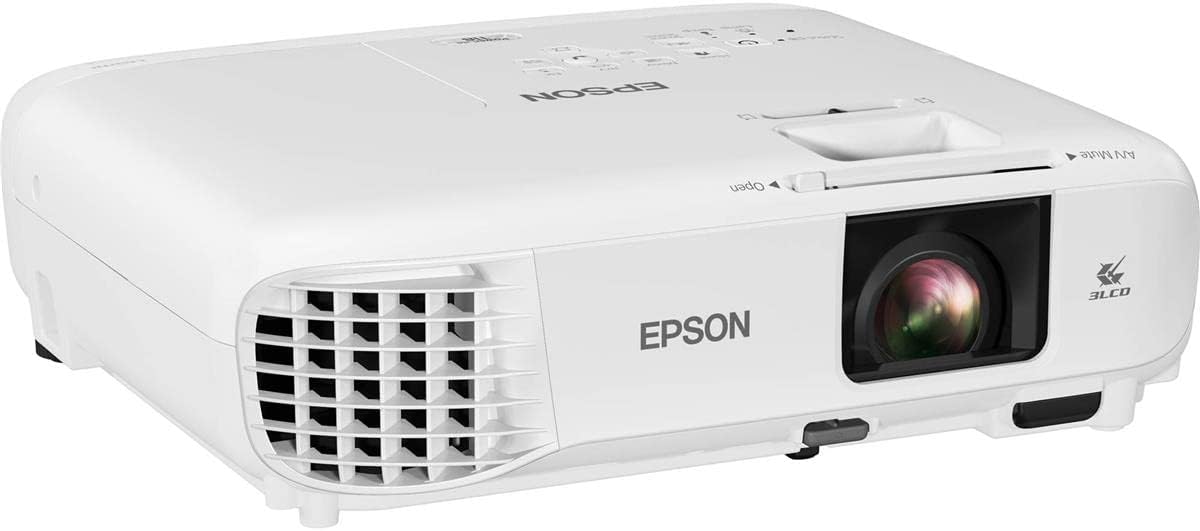
The Epson PowerLite 118 is a conventional 4:3 classroom projector rather than a visualizer camera, and it serves a different but important purpose: displaying prepared slides, documents, video, and lessons across a room. Its 4.9 rating is the second-highest in the list, making it a strong all-around institutional projector for schools and training environments.
We may earn a commission when you buy through this link, at no additional cost to you.
Epson's 3LCD technology produces vibrant images, while the moderator function can connect up to 50 users simultaneously. That is particularly relevant in active classrooms where several student devices may need supervision. HDMI carries video and audio through one connection, and the built-in speaker gives the projector useful sound without requiring a separate output for simple content.
The stated lamp life of 17,000 hours supports long-term institutional use, reducing the frequency of lamp-related maintenance compared with a short-lived classroom projection setup. Its 4:3 aspect ratio suits older presentation formats and many traditional teaching screens, while ceiling mounting provides a permanent installation option.
This model is best for teachers who need a reliable screen projector and already have another method for live paper or object capture. It cannot show a physical worksheet without a separate document camera. For a complete classroom package, it can pair well with one of the dedicated visualizers in this guide, especially where multi-user device moderation and long operating life are priorities.
The moderator function supports connected classrooms where instructors need to control which participants' screens are visible. This can improve focus during collaborative digital work.
A stated 17,000-hour lamp life supports long service intervals. The 3LCD system and built-in speaker also make this a self-contained option for common slide and video presentations.
We may earn a commission when you buy through this link, at no additional cost to you.
The DLP Business Projector 3300 is designed for offices, classrooms, meeting rooms, and training spaces that need a bright, conventional projection solution. Its 5.0 rating is the highest in the comparison, although the broad product name and limited published detail make careful feature verification important before purchase.
We may earn a commission when you buy through this link, at no additional cost to you.
The projector delivers 3300 lumens of brightness for indoor use, with support for slides, documents, charts, and other visual content. Its built-in DLP system is described as providing natural color and enhanced contrast, helping teaching materials and business graphics remain clean and easy to interpret.
A large display size makes the projector appropriate for group instruction, while a fast-start design reduces preparation time between lessons or meetings. The simple wired operating design avoids the complexity of wireless networking, making it potentially easier to deploy in a controlled classroom environment.
This model makes most sense for institutions that prioritize brightness, fast startup, and an uncomplicated connection to a laptop or room computer. It does not perform live document capture, so teachers still need a visualiser for handwritten work and physical demonstrations. Confirm the full input, resolution, mounting, and audio specifications with the current listing before integrating it into a specific room.
A 3300-lumen output is designed to keep slides, charts, and classroom visuals visible in ordinary indoor conditions. That makes it useful for lessons in rooms that cannot be fully darkened.
Fast startup helps minimize gaps between classes. The straightforward wired workflow can also simplify routine use by teachers who prefer dependable, repeatable connections.
We may earn a commission when you buy through this link, at no additional cost to you.
The Epson PowerLite E20 is a flexible 4:3 LCD projector intended for teachers who need reliable display equipment in varied classroom arrangements. Its 4.8 rating makes it one of the most highly regarded products in the guide. The flexible construction allows placement from virtually anywhere, and the white housing is designed for unobtrusive installation.
We may earn a commission when you buy through this link, at no additional cost to you.
The 3LCD technology produces vibrant, true-to-life images for slides, diagrams, and instructional media. HDMI transfers both video and audio through a single cable, while the integrated five-watt speaker provides a straightforward way to add sound to presentations that do not require a larger room audio system.
The stated 12,000-hour lamp life supports regular institutional use, though it is shorter than the 17,000-hour figure listed for the PowerLite 118. The 4:3 format remains relevant for traditional education materials and existing projector screens, offering compatibility with schools that have not transitioned fully to widescreen displays.
The E20 is a strong choice for daily classroom projection where installation location may change or a ceiling mount is preferred. It is not a document camera and cannot visually magnify a worksheet by itself. Teachers should pair it with a visualizer when the curriculum requires frequent demonstrations of paper, hands-on objects, or student work.
Flexible construction and ceiling-mount support allow the projector to adapt to different rooms and teaching positions. A white finish helps it blend into many classroom interiors.
The 3LCD system prioritizes vibrant presentation imagery. A five-watt speaker and one-cable HDMI connection simplify basic audiovisual setups.
We may earn a commission when you buy through this link, at no additional cost to you.
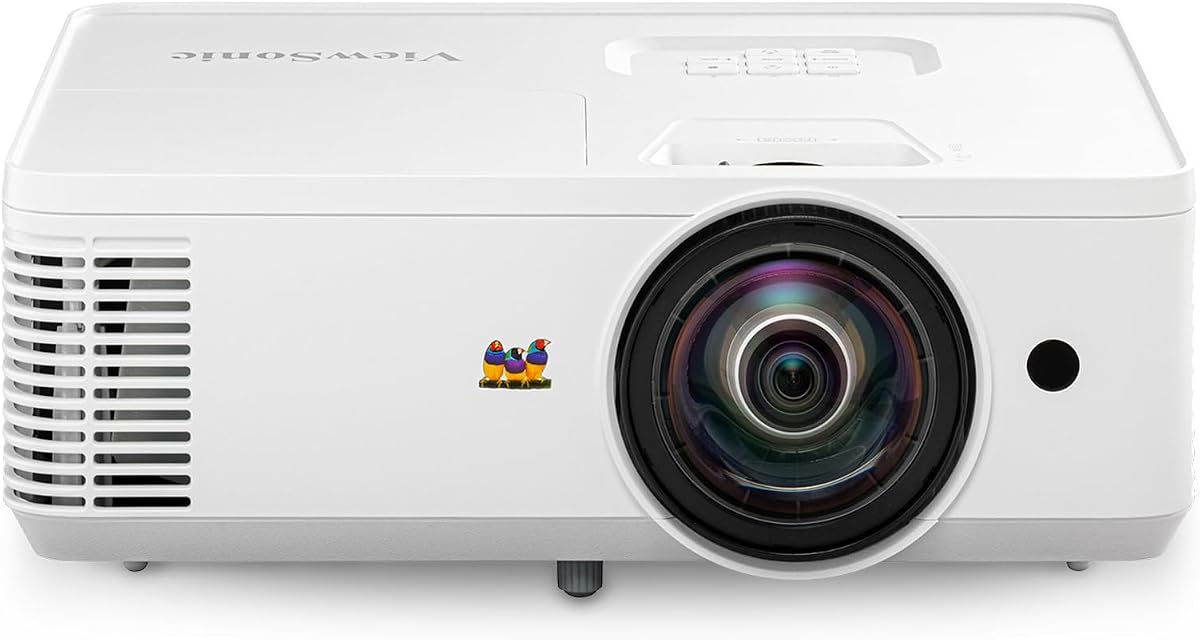
The ViewSonic PS502W is built for classrooms and meeting rooms where valuable floor space is limited. Its 4.4 rating reflects a strong combination of 4000 ANSI lumens, short-throw placement, flexible installation, and useful automatic image adjustment. It can create a large image without placing the projector far back in the room.
We may earn a commission when you buy through this link, at no additional cost to you.
The projector provides WXGA resolution of 1280 by 800 and a 0.5 throw ratio. A 100-inch image can be produced from approximately 4.5 feet away, and supported image sizes extend to 150 inches. The short-throw design also helps reduce shadows when a presenter moves near the screen.
ViewSonic's SuperColor technology is designed to provide a wide color gamut and lifelike visuals. Vertical auto-keystone correction helps square the image, while digital zoom provides additional setup control. Instant power-on and power-off functions reduce waiting during tightly scheduled lessons and meetings.
The PS502W is an excellent choice for small rooms with limited depth or for a permanent installation near the display. Dual HDMI and support for table or ceiling mounting provide practical flexibility. Its WXGA resolution may not be ideal for extremely fine text, so schools should consider source content and screen size when confirming that the detail level meets their needs.
The 0.5 throw ratio supports a 100-inch image from about 4.5 feet away. This short distance is valuable where conventional projector placement would obstruct learners or consume instructional space.
SuperColor is intended to make educational visuals vivid and natural. Automatic vertical keystone correction, digital zoom, and fast power controls reduce routine installation and operating effort.
We may earn a commission when you buy through this link, at no additional cost to you.
The right classroom projection solution depends on what teachers display, how the room is equipped, and whether live document capture is essential. Resolution, illumination, placement, connectivity, software, and maintenance should be evaluated together rather than in isolation.
A document camera is primarily a camera. It turns worksheets, handwriting, small objects, and demonstrations into a live digital image, usually shown through a computer, projector, interactive board, or conferencing application. A conventional room projector displays prepared slides, video, and documents from a computer but does not capture physical material. Some teachers need both a camera and a projector, while others use a visualizer with an existing interactive display.
Higher resolution helps small text, fine diagrams, artwork, and scientific details remain readable. The featured document cameras range from 8MP sensors to 4K live output, while conventional projectors include WXGA and 4:3 formats. Resolution alone does not determine clarity: focus, lighting, optics, display size, and the computer's processing also affect the final image. Consider the smallest text and most detailed objects you expect to show.
Built-in LED lighting is especially useful in dim rooms, while a high-lumen projector is better suited to bright indoor spaces. For cameras, compare the maximum viewing area with the size of common materials. A3 support is useful for large worksheets and two-page spreads, while a more compact area may be sufficient for standard paper and small demonstrations. Adjustable lighting levels and brightness controls provide useful control when materials vary.
USB offers a familiar direct connection to a computer, while HDMI supports display devices and televisions. Wi-Fi can reduce cable clutter and allow tablet or phone use, although it adds network and app considerations. Check whether the camera works with your operating system, conferencing platform, interactive board, and room display. A product that supports many devices still needs compatible software and the correct ports.
A 30fps feed generally looks smoother when the teacher moves an object or points to a changing detail. Fast, dependable autofocus prevents a demonstration from becoming distracting. Manual focus can help with a fixed subject, but automatic modes are more convenient during live instruction. For a camera used mainly for static worksheets, image stability and clarity may matter more than frame rate.
A multi-jointed arm helps position the lens over different heights, angles, and orientations. A swivel head expands the range of overhead and side views. Folding designs are easier to store and carry between rooms, while battery-powered wireless models reduce dependence on fixed cables. Teachers who regularly move equipment should prioritize stand stability, compact storage, battery endurance, and wireless range.
Built-in microphones can make a document camera more useful for remote lessons because the teacher and nearby students may be captured in the same feed. A built-in speaker is useful on conventional projectors, though larger rooms may still need dedicated audio equipment. Check microphone quality, echo behavior, room placement, and application permissions before relying on a camera for daily videoconferencing.
Document cameras generally benefit from careful lens cleaning, protected joints, and software that remains compatible with the school network. Projectors require attention to lamp life, filters, ventilation, and scheduled replacement planning. Annotation, recording, scanning, OCR, and whiteboard software can add value, but also create a learning curve. Favor tools that align with the expertise already available in your institution.
Set up the device before students arrive. Place the stand on a stable surface, connect the appropriate USB, HDMI, VGA, or network link, and position the lens directly above the material. Turn on the built-in lighting or projector, adjust brightness, focus, and framing, and confirm that text appears upright. For a camera, check image orientation and test the selected conferencing application before the lesson begins.
During use, keep the viewing surface clear and move printed pages slowly when readability matters. Avoid touching the lens, and do not force the arm through its full range of motion. Use digital zoom sparingly because cropping can reduce fine detail. For wireless cameras, maintain a clear path between the camera and receiver, and keep the battery available for the complete class. End online sessions through the application so remote participants receive the intended final view.
Afterward, switch off the equipment according to the manufacturer's instructions, unplug cables carefully, and coil them without sharp bends. Wipe the camera lens and housing with a soft dry cloth, and clean the projector's vents without allowing moisture inside the unit. Store folding stands in their intended cases and keep document cameras away from excessive heat, dust, and liquid. Periodic test lessons help identify software, focus, or connection issues before they interrupt instruction.
No. A document camera captures physical pages, handwriting, and objects as a live digital image. A classroom projector casts an image from a computer or other source onto a screen. A document camera can be paired with a projector, interactive whiteboard, computer display, or conferencing platform to show what it captures.
The best resolution depends on how large the text will appear and what types of materials you teach. 8MP document cameras offer detailed still images, while 4K live output can make small objects and fine diagrams easier to see. Large-room projectors may look acceptable at lower resolutions, but the source content and viewing distance still matter.
Many document cameras act as standard UVC webcams, allowing them to be selected as the camera source in Zoom, Google Meet, Microsoft Teams, and similar services. Compatibility should be verified for the specific operating system and application. Teachers should test the microphone, image orientation, focus, and permissions before a live online lesson.
Wireless operation is helpful when the camera must move around the room, connect to a tablet, or avoid a long cable run. It can also make setup more flexible in rooms with limited cable access. A wired USB model is often simpler and more consistent, so the best choice depends on mobility, network reliability, and existing classroom equipment.
Yes, particularly in dim classrooms or when projecting dark, reflective, or three-dimensional materials. Adjustable LED levels allow the teacher to balance illumination and avoid washing out pale paper. A room with strong ambient light may also require a brighter projector, but camera lighting still improves the consistency of the captured image.
A short-throw projector is beneficial in small rooms because it can produce a large image from a short distance. This can reduce shadow obstruction and leave more usable space. It may be less suitable for very large rooms where a short-throw model cannot deliver the required image size or brightness at a comfortable viewing distance.
A compact camera needs enough room for its base, adjustable arm, and the material being displayed. Larger overhead stages such as the Apollo model require substantially more table space. For mobile use, a folding design and a dedicated storage case can make a visualizer easier to manage between rooms.
Keep camera lenses clean, protect adjustable joints from unnecessary strain, and inspect cables for damage. Projectors need unobstructed ventilation and periodic lamp or filter attention according to the manufacturer. Updating conferencing and annotation software, testing device connections, and running short trial lessons can prevent avoidable interruptions.
The IPEVO V4K is the strongest overall document camera for a conventional computer-based classroom, combining an 8MP sensor, smooth full-HD streaming, and broad platform support. The THUSTAR A3-Size offers a feature-rich budget route, while the IPEVO VZ-X stands out for premium wireless flexibility, multiple connection modes, and long battery life. Schools focused on live large-format visuals may also find the INSWAN INS-2 particularly compelling.
For a permanent room display, focus on brightness, placement, image adjustment, source compatibility, and maintenance. The Epson PowerLite 118 is especially useful where many student devices need moderation, the DLP model prioritizes brightness and quick startup, and the ViewSonic PS502W makes sense where short-throw placement saves space. Match the projector and camera as a complete teaching system rather than assuming one device performs every function.
Finally, verify the current specifications, included accessories, software requirements, room connections, and product availability before ordering. Classroom technology changes as teaching platforms and device standards evolve, and prices also fluctuate. A careful compatibility check will prevent most disappointments and help the chosen document projector for classroom integrate smoothly into daily instruction.