
darkFlash V92 PC Case Screen
4.1Editor score
Nine-point-two-inch ultrawide panel
Native USB-C and 9-pin
Extensive monitoring widgets
An LCD screen for a PC case can transform an ordinary build into a personalized system dashboard, hardware-monitoring center, media display, or decorative centerpiece. The best models balance readable resolution, flexible mounting, dependable computer connectivity, attractive construction, and software that remains useful rather than merely decorative.
This guide compares ten LCD screens for PC cases across display technology, dimensions, resolutions, touch support, operating-system compatibility, connection methods, mounting options, sensor capabilities, lighting, speakers, and customization features. It includes dedicated sensor panels, broad secondary displays, compact magnetic screens, and case-specific designs for builders with different layouts and priorities.
Each pick demonstrates why it earned its place in the ranking, while honest trade-offs help distinguish the strongest all-around option from the most affordable, spacious, or specialized choices. Product specifications and availability can change, so readers should verify dimensions, headers, software requirements, and current pricing before making a final purchase.
4.1Editor score

4.4Editor score

4.2Editor score
As an Amazon Associate we earn from qualifying purchases.
The comparison below highlights the major differences in size, resolution, connection method, mounting style, and special features, making it easier to identify the LCD screen that best matches your case and intended use.




The Lian Li SM088X is an 8.8-inch universal LCD screen with a diffused ARGB frame, and its 4.4 rating reflects a strong balance between appearance, functionality, and mounting flexibility. Rather than relying on a dedicated graphics output, it can operate as a USB-powered secondary display for hardware statistics, media, photographs, videos, or custom layouts. That makes it one of the most attractive choices for a modern gaming or workstation build.
We may earn a commission when you buy through this link, at no additional cost to you.
Its most convincing feature is the combination of a compact display and integrated lighting. L-Connect 3 provides preset themes, modular information, user-created visual content, and customizable temperature units. The bracket supports height and tilt adjustment and can be attached to fan frames, case panels, or flat surfaces with adhesive pads. This range of placement options makes the SM088X adaptable to cases where a traditional wide-screen panel would consume too much space.
The important trade-off is that its full potential depends on the surrounding software ecosystem. L-Connect 3 is required for customization, and the installation instructions specifically warn against using the longer screws when attaching the stand and universal screen. Buyers should follow the included guidance carefully. A screen that can also work independently through USB is convenient, but its connectivity and presentation remain more cohesive within a compatible build.
This is the strongest all-around recommendation for a builder who wants a panel that looks integrated with the case, provides useful monitoring information, and offers more installation flexibility than a case-specific display. It also suits creative workstation owners who want to rotate through media and custom graphics. For anyone willing to use L-Connect 3 and follow the prescribed mounting hardware, the SM088X provides the most convincing mix of polish and utility.
The diffused ARGB strip can synchronize with the rest of a compatible build and add visual depth without the glare associated with bare LED accents. Because the lighting is integrated into the frame rather than added as a separate accessory, the result looks more deliberate and cohesive.
Height adjustment, tilt adjustment, fan-frame mounting, panel mounting, and adhesive-pad placement give the SM088X more freedom than a rigid case-specific screen. Measure the intended location and use the specified screws to maintain a secure fit.
We may earn a commission when you buy through this link, at no additional cost to you.
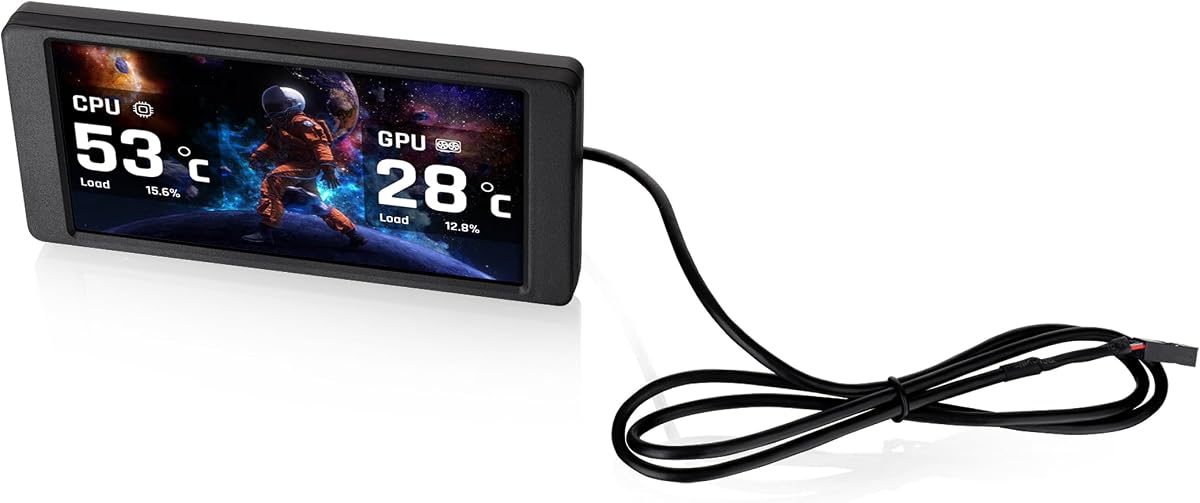
The darkFlash V92 is a 9.2-inch case display designed specifically for system monitoring and personalized information panels. Its 1920 by 462 IPS screen offers a wide, shallow format suited to CPU and GPU temperatures, usage, RAM activity, fan speeds, clocks, weather, and custom widgets. The 4.1 rating indicates a capable budget option, especially for builders who want extensive sensor information in a compact format.
We may earn a commission when you buy through this link, at no additional cost to you.
Connectivity is straightforward. The V92 can use an external USB port or a motherboard USB 2.0 9-pin header, and both USB cables are included. Neither HDMI nor DisplayPort is required, which helps preserve valuable GPU outputs for primary displays. Station Space provides themes, plugins, images, GIFs, MP4 playback, weather, news, stock information, and customizable panels, although it must continue running while these functions are used.
The principal limitation is operating-system compatibility. Station Space is designed for Windows 10 and 11 and does not support macOS or Linux. Users must also check the 9.54 by 2.48 by 0.47-inch clearance before buying, since the long horizontal panel may not fit every ATX, micro-ATX, or ITX chassis. Horizontal or vertical installation is possible through the included fan bracket and rear threaded holes.
Budget-conscious builders should choose the V92 when sensor depth and a high-resolution ultrawide panel matter more than cross-platform support. It offers one of the strongest combinations of display area, monitoring features, and mounting choices at the lower end of the category. Confirm your case dimensions and operating system before ordering, and it becomes a practical, feature-rich dashboard for a Windows gaming rig.
Station Space extends beyond temperature readings with usage, RAM, fan speed, clock, weather, news, stock, image, GIF, and video widgets. This makes the V92 useful for quick system checks as well as a rotating visual display inside the chassis.
The internal 9-pin option keeps the screen tidy inside the case, while the external USB-C route simplifies initial setup or desk use. Both cables are included, reducing the need for additional accessories.
We may earn a commission when you buy through this link, at no additional cost to you.
The WOWNOVA 8 Inch panel carries a 4.5 rating, the highest among the listed products, and combines a conventional 1280 by 800 IPS format with dedicated PC-case monitoring. Its 8-inch display can show CPU, GPU, RAM, FPS, and HDD data, but it also supports dynamic video themes and an extended desktop mode. That versatility gives it appeal beyond the sensor-panel category.
We may earn a commission when you buy through this link, at no additional cost to you.
Its installation proposition is particularly clear: one USB-C cable or one 9-pin cable, with no HDMI connection and no separate power requirement. The panel measures 7.52 by 4.59 inches overall, has a 0.39-inch thickness, and uses an aluminum housing. A visual theme editor lets users drag interface elements, arrange custom layouts, and switch between horizontal and vertical orientations. Auto-start, brightness adjustment, and automatic screen shutdown are also listed.
There are limits to consider. The software is compatible with Windows 10 and 11, and the advertised desktop mode depends on the supplied application and correct system configuration. The white enclosure may also blend differently from a dark or transparent case, although that can suit coordinated light-themed builds. Owners should review the software requirements before installation to ensure the desired mode and sensor data will be available.
The WOWNOVA panel is a strong recommendation for someone who wants more than a static temperature readout. Its combination of monitoring, desktop extension, dynamic visuals, touch-free one-cable operation, and a higher-resolution 4:3-style display makes it particularly versatile. It ranks highly because it gives users several ways to use one relatively compact piece of case hardware.
Desktop mode gives the WOWNOVA screen a conventional extended-display role, while monitoring layouts keep hardware data close at hand. This dual-purpose design is useful when you want useful system information but do not want a permanently decorative-only panel.
Users can select preset dynamic videos or create a custom theme through a drag-and-drop editor. Brightness controls, automatic shutdown, and one-click software operation help make the display practical for everyday builds.
We may earn a commission when you buy through this link, at no additional cost to you.
The wisecoco 12.6 Inch Bar is a large 1920 by 515 IPS display intended for the Hyte Y60 and similar wide-front-panel builds. With a 4.2 rating, it stands out for offering the most screen area in this roundup, a useful 60Hz refresh rate, a 178-degree viewing angle, a 1000:1 contrast ratio, and built-in speakers. It is a premium-style display for builders who want the panel to function as a real secondary screen.
We may earn a commission when you buy through this link, at no additional cost to you.
Installation is straightforward for its target case because the included bracket is designed to fit the Y60 panel and the package includes a screwdriver without requiring extra screws. Mini HDMI supplies video, while a 3.5mm DC connection handles power. The supplied DC cable and HDMI-to-mini-HDMI cable make the core connection process simple. The speakers can provide basic audio without adding separate desktop units inside the chassis.
The main compromise is specialization. The product is not a universal magnetic panel, and its long dimensions make case fitment essential. The listed power requirements are 5V at 2A for the DC connection or 5V at 500mA through micro USB-A, although the micro USB-A cable is not included. Buyers using a different case may need to reconsider whether the bracket and panel geometry will work.
This screen earns the Best Premium designation because its large format, included Y60 hardware, IPS quality, and integrated audio create a more complete media and monitoring package than most compact sensor panels. It is an excellent match for a Y60 owner who wants a broad secondary display. For other cases, measure carefully and confirm that the mounting method, cable routing, and power source suit your layout.
The 12.6-inch width provides substantially more room than conventional 8-inch panels, making the screen useful for extended information, media, or a custom dashboard. The 1920 by 515 resolution follows the long, shallow shape of the target panel.
Two integrated speakers add another dimension to the display without requiring separate units in the case. They complement the large screen for casual media use, although their suitability depends on the chosen placement and acoustic conditions.
We may earn a commission when you buy through this link, at no additional cost to you.
The Hosyond 8.8 Inch Touchscreen combines a narrow IPS panel with capacitive touch and a 4.0 rating. Its unusual 480 by 1960 resolution is listed in the product data and appears reversed relative to the conventional description of a wide display, so buyers should verify the actual orientation and full-HD dimensions before installation. Even with that caveat, the panel offers an unusual combination of touch input, compact proportions, and hardware-monitoring potential.
We may earn a commission when you buy through this link, at no additional cost to you.
The capacitive touchscreen is the defining feature. The display can serve as a secondary screen for a personal computer, Raspberry Pi, Banana Pi, BeagleBone Black, PS4, Xbox 360, TV box, or digital camera in display-only mode. AIDA64 can provide CPU, GPU, and other sensor readings when used as a PC-case sub-screen. HDMI carries the display signal, while low-power 5V USB Type-C power is rated at 3.8 watts.
The product emphasizes simple setup, and driver-free operation is listed for supported systems including Windows 7, Windows 8, Windows 10, Windows 11, Windows 10 IoT, Raspbian, Ubuntu, Kali Linux, and Kodi. The rating of 4.0 suggests a broadly capable product, but software and touch behavior can depend on the connected source. AIDA64 itself is not included and must be downloaded separately by the user.
Choose the Hosyond when touch control is a meaningful advantage, such as running local controls from a mini PC or displaying touch-friendly controls inside a custom build. For basic Windows temperature monitoring, several less specialized panels offer simpler sensor software. Its strongest advantage is flexibility across embedded devices and mainstream systems, making it a good choice when the PC is not the only intended source.
Capacitive input allows the panel to serve as more than a read-only dashboard. That makes it useful for local controls, kiosk-style interfaces, and embedded projects where a conventional sensor panel would provide little interaction.
Compatibility with Raspberry Pi, Linux environments, TV boxes, and other devices broadens the panel's role. Users should still confirm operating-system and driver support for their exact source before relying on touch or monitoring functions.
We may earn a commission when you buy through this link, at no additional cost to you.
The Thermalright Trofeo Vision LCD AIO Display is a 9.16-inch 1920 by 480 screen with a 4.3 rating. It occupies a useful middle ground between compact sensor panels and large case bars, offering enough width for system statistics, custom graphics, and animated visuals without taking up the space of a 12.6-inch display. Its clean dimensions also make it a sensible choice for builders who want information visible without overwhelming the interior.
We may earn a commission when you buy through this link, at no additional cost to you.
TRCC software provides preset themes and DIY interfaces for monitoring CPU and GPU temperatures, fan speed, memory use, and other parameters. A USB Type-C connection supports quick setup, with the product described as plug-and-play for most Windows systems and not requiring complicated drivers. The measured enclosure is 251 by 68 by 17 millimeters, allowing the screen to sit inside or outside the chassis.
The central trade-off is dependence on TRCC for monitoring, control, and customization. While the hardware is approachable, its most useful features are not simply passive video panels. Builders should be prepared to install and configure the software, and compatibility beyond the stated Windows emphasis may be less predictable than the product descriptions imply.
This display is a strong fit for builders who value a crisp ultrawide panel and extensive software customization at a moderate size. It can function as a clean hardware dashboard, a rotating art panel, or a personal status display. Compared with larger Y60-oriented screens, it is easier to consider across more case layouts, although the mounting hardware should be checked before purchase because the supplied data emphasizes the screen's dimensions more than a detailed mounting system.
A 1920 by 480 resolution provides enough horizontal detail for readable widgets and smooth custom graphics. The 9.16-inch format offers more visual presence than a small status display without reaching the footprint of a full-width bar.
TRCC combines monitoring with preset and DIY layouts, allowing the panel to shift between functional information and personalized visuals. This makes it a flexible centerpiece for creators who want the screen to match the rest of the build.
We may earn a commission when you buy through this link, at no additional cost to you.
The Thermaltake View 370 Kit is a 6-inch, 1480 by 720 LCD designed for View 370 and View 390 series chassis. Its 3.8 rating is the second-lowest in this group, but that should be interpreted in the context of a highly specialized product rather than a universal screen. For a builder with a compatible Thermaltake case, it delivers a coordinated upgrade that fits the case ecosystem.
We may earn a commission when you buy through this link, at no additional cost to you.
The kit can show customizable graphics and real-time CPU, GPU, RAM, frequency, load, and temperature information. It supports up to 20 custom backgrounds in JPG, GIF, PNG, MP4, MOV, and AVI formats, with each file listed at up to 30MB. The updated TT RGB Plus 3.0 interface adds improved compatibility, control, system monitoring, and customization. Type-C to USB 9-pin connectivity supports a tidy internal arrangement.
The limitations are significant outside its intended environment. It does not fit the broader range of cases covered by universal panels, and its 6-inch screen is the smallest listed. Buyers should confirm the exact View series model before ordering, as similar-looking cases may have different panel layouts or mounting provisions. The lower rating may also reflect limited compatibility rather than weak screen performance.
For owners of the View 370 or View 390, this is the most logical integrated screen option because it was designed around those chassis. It is less appropriate for a new build unless the case is already part of the Thermaltake ecosystem. Those who value synchronized RGB controls, case-specific fit, and a compact standalone display will find it more satisfying than forcing a mismatched generic panel into the same location.
The kit's compatibility with the View 370 and View 390 simplifies the decision for builders who already own one of these cases. It avoids adapting an external mounting system to a panel that was not designed around the chassis.
Six default graphics and support for numerous uploaded image and video formats make the panel more than a fixed sensor display. Real-time component readouts let the same screen serve practical monitoring and decorative functions.
We may earn a commission when you buy through this link, at no additional cost to you.
The GeeekPi 12.6 Inch display is a large touchscreen panel created for the Hyte Y60, with a 1920 by 515 IPS screen and a 4.0 rating. Its defining combination is scale, touch, and built-in audio. It is more like a compact all-in-one display than a simple sensor panel, making it appealing for builders who want to operate controls, view media, or keep a broad information layout visible inside the case.
We may earn a commission when you buy through this link, at no additional cost to you.
The panel supports up to ten points of multi-touch and uses tempered glass for responsiveness and durability. Its 1200:1 contrast ratio and IPS technology help maintain consistent color and viewing angles. Two built-in speakers provide basic audio, while plug-and-play compatibility with Windows 7, Windows 8, Windows 10, and macOS means it can also function as a conventional secondary display. Adjustable horizontal and vertical display settings add flexibility.
The product is specifically designed to fit the Y60 case panel, and the package includes a screwdriver and does not require extra screws. It also ships without a traditional requirement for additional setup software. Buyers must remember to remove the protective film from the screen surface before use. Like the other Y60-oriented model, it is not a universal choice for arbitrary cases and should be checked against the intended chassis geometry.
Choose the GeeekPi when your priority is a large interactive display rather than a dedicated sensor panel. It is particularly compelling for a Y60 build used as a media or productivity station, where touch and built-in speakers provide more value than additional monitoring presets. For ordinary temperature readouts, a smaller dedicated dashboard may be simpler, but this is the stronger choice for interactive use.
Multi-touch support enables more natural interaction than a single-finger sensor panel. It is useful for touch-based utilities, kiosk interfaces, and compact media controls within the chassis.
Compatibility with major Windows versions and macOS, plus adjustable display orientation, means the panel can serve as an extended screen. Remove the protective film before operating the touchscreen to preserve sensitivity and clarity.
We may earn a commission when you buy through this link, at no additional cost to you.
The Thermalright TV 9.16 is a magnetic 9.16-inch IPS display with a 1920 by 480 resolution and a 4.3 rating. Its screw-free metal-frame design makes it unusually easy to install, remove, and reposition. That flexibility is especially useful when you want to move the screen for radiator clearance, cable access, photography, or changes to the build's layout.
We may earn a commission when you buy through this link, at no additional cost to you.
TRCC software provides system-parameter monitoring, static and dynamic image switching, video playback, and DIY personalized themes. The USB Type-C connector handles both power and data, with internal power and communication coming from the motherboard's 9-pin USB interface. The enclosure measures 251 by 68 by 17 millimeters, giving it a slim profile that can fit inside or outside a PC chassis.
The magnetic construction does not eliminate setup work. TRCC must be downloaded, unzipped, and installed, and the wiring should be confirmed before software installation. The software controls monitoring, on-off behavior, and theme changes, so a working computer connection and a complete internal USB connection are essential to the advertised experience.
The TV 9.16 is an attractive recommendation for builders who prioritize installation convenience and flexibility. It combines a sharp wide panel with the freedom to remove it without tools. It is less specialized than a Y60 screen and less information-focused than Station Space, but it offers a straightforward balance of resolution, customization, and adaptable mounting that fits many modding styles.
The magnetic frame allows the display to attach directly to a compatible steel surface without screws. Builders can reposition it as needed, which is valuable in crowded cases where radiator fans and cable bundles may compete for space.
TRCC combines parameter monitoring with static images, dynamic visuals, video playback, and DIY themes. The same display can therefore alternate between a useful dashboard and a personalized presentation.
We may earn a commission when you buy through this link, at no additional cost to you.
The Thermalright Trofeo Vision Mini is a 6.86-inch full-color IPS display with a 1280 by 480 resolution and a 3.4 rating. It is the smallest and lowest-rated option in the roundup, but its magnetic panel and ability to pair with the Trofeo Vision series liquid cooler give it a clear use for compact builds where every millimeter matters.
We may earn a commission when you buy through this link, at no additional cost to you.
The product measures 187.2 by 72.1 by 21 millimeters and uses USB Type-C for power and data through the motherboard's 9-pin USB interface. TRCC software supports system-parameter monitoring, static and dynamic image switching, video playback, and DIY themes. After installation, it can launch with the computer and remain in the taskbar background, reducing the need to open the utility manually.
Its magnetic mounting system is the main practical advantage. It can attach to compatible chassis surfaces or pair with a Trofeo Vision-series water-cooling radiator, and its position is not fixed to one location. That makes it more adaptable than a dedicated case-bracket panel. The trade-off is screen area: at 6.86 inches, detailed dashboards and small text will be less readable than on the 9.16-inch and 12.6-inch alternatives.
The lower rating should lead buyers to set expectations accordingly. This is a compact supplementary display rather than a full workstation display or roomy monitoring panel. It makes the most sense for compact cases, liquid-cooler integrations, and builders who prioritize a small, removable centerpiece over extensive information. Confirm that the internal USB wiring and magnetic surface are suitable before ordering.
The compact magnetic design allows the display to move around the chassis and potentially align with a compatible Trofeo Vision liquid cooler. This makes it well suited to builds where fixed screen real estate is limited.
TRCC supports DIY themes, dynamic and static images, video playback, and monitored system parameters. Although the panel is small, it can still provide a concise status area or decorative focal point.
We may earn a commission when you buy through this link, at no additional cost to you.
The right case LCD depends on your chassis dimensions, operating system, available USB or display connections, desired resolution, mounting method, and whether you want monitoring, touch control, media playback, or synchronized lighting.
Panel dimensions and mounting requirements determine whether an LCD screen will fit without colliding with fans, radiators, reservoirs, cable bundles, or the glass side panel. Pay close attention to the listed width, height, and depth, then inspect the intended mounting area rather than estimating only from the screen's diagonal size. Some products specify case compatibility directly, while universal models rely on brackets, fan frames, adhesive pads, or magnetic attachment.
Universal screens tend to offer greater freedom across chassis types, but their brackets still have limits. Case-specific panels may look more integrated, yet they are difficult to transplant into another build. Measure before ordering and leave enough room for connectors and cable bends.
USB-connected panels are common because they can receive power and data through a motherboard's internal 9-pin header or an external USB port. This approach usually preserves the GPU's HDMI and DisplayPort outputs for primary monitors. HDMI-connected screens, such as the large Y60-focused models, can behave as conventional secondary displays and may support broader operating-system use, but they require an available video output.
Check whether the included cable matches your port. Also confirm whether the screen receives video and power together or needs separate connections. Internal 9-pin headers are convenient for tidy builds, but not every motherboard exposes them, and some cases restrict access or cable routing.
Ultrawide panels such as 1920 by 480 and 1920 by 515 are optimized for status bars, dashboards, media, and narrow case spaces. A more conventional 1280 by 800 panel may be better for desktop-style layouts. Higher resolution can improve text clarity, but aspect ratio, panel size, and the software's layout options determine how useful it actually feels in practice.
Avoid judging a dashboard solely by the resolution number. Check which sensor fields are supported, whether the interface can be rearranged, and whether the software can show the information you care about without making everything unreadably small.
Most dedicated monitoring panels rely on companion software such as TRCC, Station Space, L-Connect 3, or a manufacturer's own utility. These applications can provide temperatures, load, fan speeds, media, weather, and custom themes, but their operating-system support varies. The darkFlash V92 and WOWNOVA options are explicitly oriented toward Windows, while some HDMI displays can work directly with mainstream desktop systems.
Also check whether the software must remain running, whether it starts automatically, and whether custom layouts can be saved. A product that appears feature-rich on paper may be less useful if its platform support does not match your computer.
A sensor panel prioritizes hardware statistics, temperatures, fan speeds, clocks, and compact widgets. It is usually controlled through dedicated software and may not behave like a standard monitor. A secondary display can extend the desktop or mirror content, making it more suitable for media, productivity, touch controls, or embedded projects.
Some hybrid products support both roles. The WOWNOVA panel includes desktop mode, while HDMI-connected models often function as conventional displays. Choose based on your primary use instead of assuming every case LCD works the same way.
Screwed brackets offer a fixed, polished installation, while magnetic screens are easier to remove and reposition. Adhesive pads can suit flat panels but may be less suitable for repeated adjustment. Fans and radiators add their own clearance concerns, so consider the complete assembly rather than just the screen housing.
Removable panels are helpful when servicing components, cleaning dust, photographing a build, or changing radiator placement. Follow included screw guidance carefully, particularly for universal models that specify exact fasteners.
ARGB lighting can make a small screen blend with the rest of a coordinated build, while touch can enable interactive controls rather than passive monitoring. Built-in speakers add another function to larger Y60-oriented panels. These extras are useful only when they match your priorities; they should not substitute for secure mounting, readable resolution, and reliable connectivity.
Look for customizable lighting effects, multi-point touch, orientation controls, and speaker placement. Extra features also add potential complexity, so check whether they depend on the same software ecosystem as the display.
A tidy screen can still produce a messy build if its cables cross fans or prevent side-panel closure. Internal 9-pin connections are usually shorter and more discreet, while external USB cables simplify testing. HDMI-based systems may require both video and power leads, and some included cables may not cover every connection method.
Plan the route before installation and leave enough slack for component removal. Check connector direction, header location, and nearby fan or radiator clearance so the screen remains accessible after the case is assembled.
Begin by confirming the case clearance, compatible header, power requirements, and mounting hardware. Connect the screen temporarily before securing it so you can verify that the display receives power, shows the correct orientation, and responds to the required software. For an internal 9-pin installation, disconnect the mains power before connecting the motherboard header and route the cable away from sharp edges and moving fans.
Install the companion software only after the physical and data connections are complete. Open the utility, allow it to detect the display, and confirm that the desired sensors appear correctly. Test brightness, orientation, theme layouts, automatic startup, and any touch or video features before reinstalling the side panel. If the image is reversed, use the software's rotation controls or the operating system's display settings.
For long-term care, clean the screen with a soft, lint-free cloth and avoid harsh liquids or abrasive materials. Keep the ventilation openings unobstructed, inspect magnetic or screwed mounts for looseness, and make sure cables do not interfere with fans. Update the software when improvements are available, and back up custom themes or layouts so a software reset does not erase personalized layouts.
Some do, but many are specialized sensor panels. Models using USB and manufacturer software are primarily designed for temperatures, fan speeds, usage data, and custom themes, while HDMI or desktop-capable screens may extend the Windows desktop. Check the listed connection method and operating-system support before assuming standard monitor behavior.
Most USB-connected case screens do not. They can receive power and data through a motherboard's internal 9-pin USB header or an external USB connection, leaving the GPU's DisplayPort and HDMI outputs free for primary monitors. HDMI-based models do require a video source, so their cable requirements differ.
Yes, when the product supports hardware monitoring through its own software or a compatible utility such as AIDA64. The available metrics can include temperature, utilization, memory use, fan speed, clocks, and custom widgets. Make sure the operating system and sensor-reading software are compatible before installation.
No. Even universal products have dimensional and mounting limits, while products designed for the Hyte Y60 or Thermaltake View cases may not suit other layouts. Measure the available width, height, and depth, inspect nearby fans and radiators, and check whether the bracket attaches to panel holes, fan frames, steel surfaces, or adhesive pads.
That depends on the model. TRCC and WOWNOVA products support dynamic visuals, and the WOWNOVA also offers desktop mode. HDMI-equipped screens may work as conventional secondary displays with compatible systems. Dedicated USB sensor panels are generally better for dashboards and custom graphics than for normal desktop productivity.
No. Touch is valuable for interactive controls, embedded projects, kiosks, and compact media interfaces, but it is unnecessary for passive temperature monitoring. If your main goal is a hardware dashboard, prioritize sensor software, readability, resolution, and mounting rather than paying for touch capability you will not use.
It depends on the model. USB Type-C and internal 9-pin products generally use the motherboard connection for both power and data. The larger HDMI-oriented screens may require a separate DC power lead in addition to the video cable. Always follow the stated input requirements and use only the connections specified by the manufacturer.
Position the screen away from direct sightlines to bright case lighting, choose a readable theme, and adjust brightness to match the surrounding components. Leave airflow paths clear and do not place the panel where it blocks an intake or exhaust fan. Good cable management also prevents restrictions around the screen's vents.
The Lian Li SM088X is the strongest overall recommendation because it combines an attractive ARGB frame, USB secondary-display capability, rich customization, and unusually flexible mounting. The darkFlash V92 is the best budget choice for extensive Windows-based sensor widgets, while the wisecoco 12.6 Inch Bar takes the premium route with a large display, built-in speakers, and Y60-specific installation hardware.
Other builders may prefer the WOWNOVA panel's desktop mode, the Thermalright magnetic screens' removable installation, the Thermaltake kit's case-specific integration, or the GeeekPi model's large multi-touch surface. Prioritize the connection method, case clearance, software compatibility, and intended function before focusing on display size. A perfect-looking specification sheet is less useful than a screen that connects reliably and displays the information you actually want.
Specifications, accessory bundles, software behavior, and current pricing can change, so review the latest product listing before purchasing. In particular, confirm operating-system support, internal header availability, power requirements, panel dimensions, mounting fasteners, and any case-specific compatibility. With those checks completed, the right LCD screen can become a functional and visually rewarding centerpiece for the finished PC.